Saving a Booking as a Draft
Sometimes you take a booking before the details are settled. Save it as a draft. The customer isn't emailed, the team isn't alerted, and you confirm it when it's ready.
Save a draft
- Build the booking in POS as usual.
- Click the arrow next to Create booking, then Save as draft.
- Choose the customer.
- Turn on Hold these dates if nobody else should be able to book these items or seats. Add a Hold until date if the hold should end on its own.
- Click Save draft.
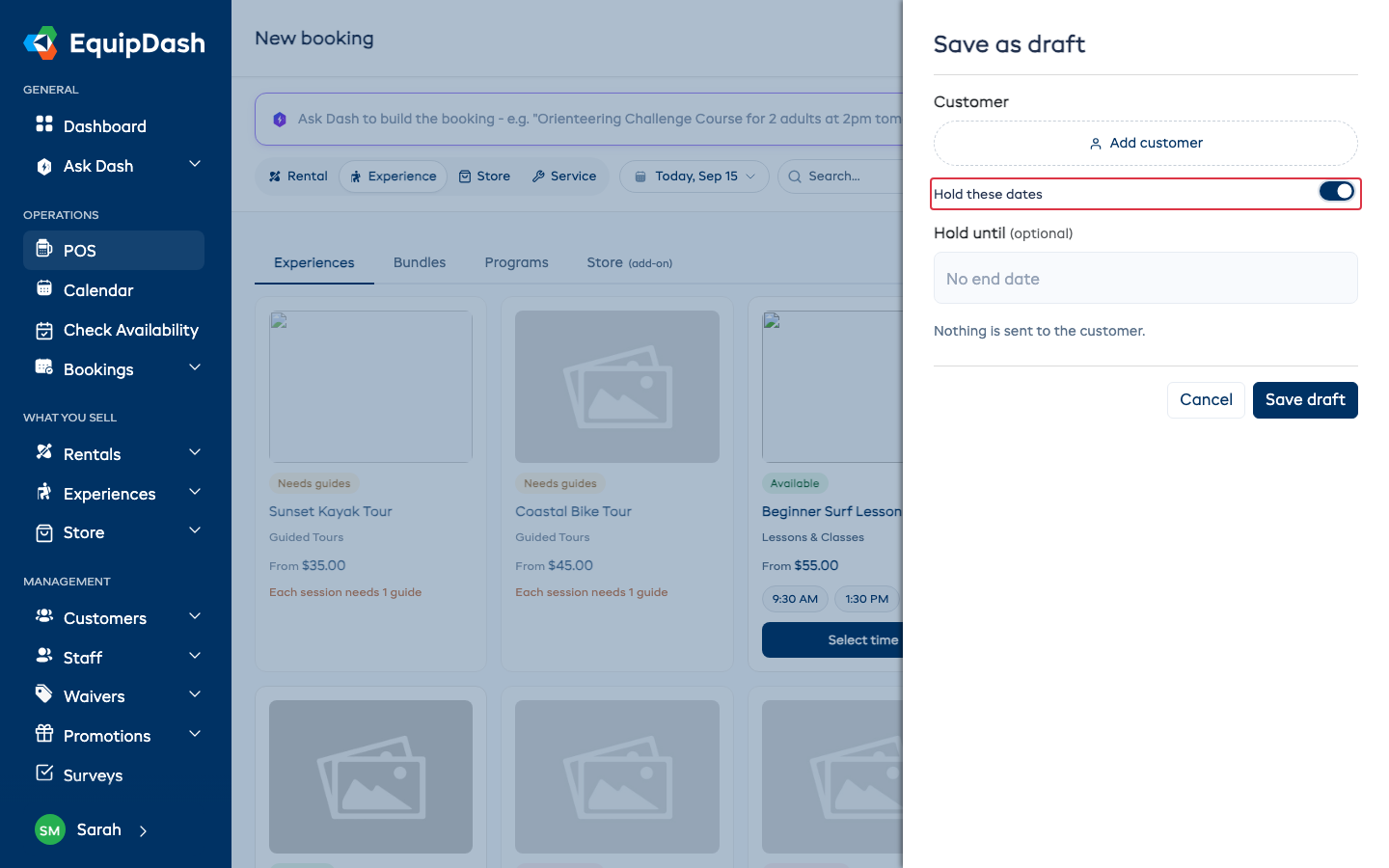
The booking opens with a Draft label. Nothing is sent to the customer.
Hold these dates
- On: the items and seats are taken off sale, the same as a confirmed booking.
- Off: nothing is held. When you confirm, EquipDash checks everything is still free first.
- Hold until: after this date the hold ends on its own. The draft stays, so you can still confirm it if the dates are free.
You can switch the hold on or off from the Draft card on the booking page. Held drafts show on the rentals calendar as On hold.
Confirm a draft
- Open the booking.
- Click Confirm booking.
- Leave Email [customer] the confirmation and Email the waiver link on, or switch them off to tell the customer yourself later.
- Click Confirm booking.
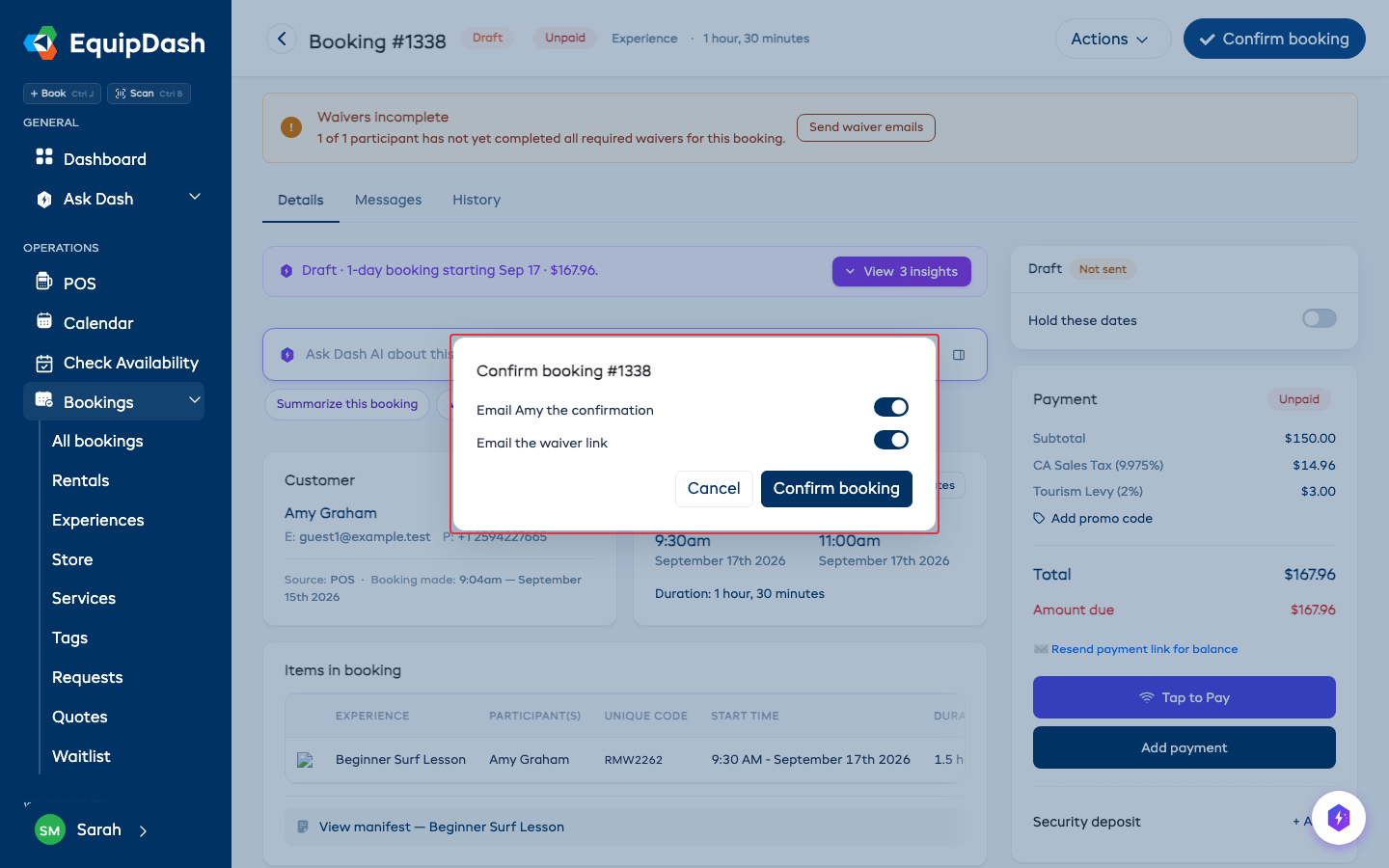
If something was booked while the draft wasn't holding, you'll see what's no longer available. The booking stays a draft and nothing is sent. Edit the booking, then confirm again.
Edit or cancel a draft
- Edit: open Actions > Edit. Saving keeps it a draft and sends nothing.
- Cancel: open Actions > Cancel draft. Anything it held becomes free to book, and the customer isn't told.
Who can do this
Staff who can create bookings can save and confirm drafts. Staff who can cancel bookings can cancel drafts.