Display Options
Beyond colors, you can control how your widget presents products and experiences to customers. This page covers layout choices, the wizard booking flow, and skill level organisation.
Default Listing View: Grid vs. List
The widget can display your products and experiences in two layouts:
Grid View
Products appear as cards arranged in a multi-column grid. Each card shows the product image, name, price, and an availability badge. This layout works well when you have attractive product photos and want a visual browsing experience.
List View
Products appear in a single-column list with the image on the left and details on the right. This layout shows more information at a glance and works well for longer product names or when descriptions are important.
Changing the Default Listing View
- Go to Settings > Booking widget.
- On the Widget settings tab, in the Browsing & listings section, find the Widget default listing view setting.
- Select Grid or List. Your change saves automatically.
Customers can still switch between grid and list view on the widget itself using the View: toggle — this setting just controls which one they see first.
Category Browser
The category browser adds a Browse by category row of pills across the top of your Experiences and Rentals listing pages. Each pill shows a category name and how many items it holds, so customers can jump straight to the category they want instead of scrolling.
When a customer taps a pill, the list filters to that category in place and the pill fills with your widget brand color. The browser stays in sync with the category filter in the sidebar — pick a category either way and both update together. Counts roll up parent and child categories, so a parent pill reflects everything underneath it.
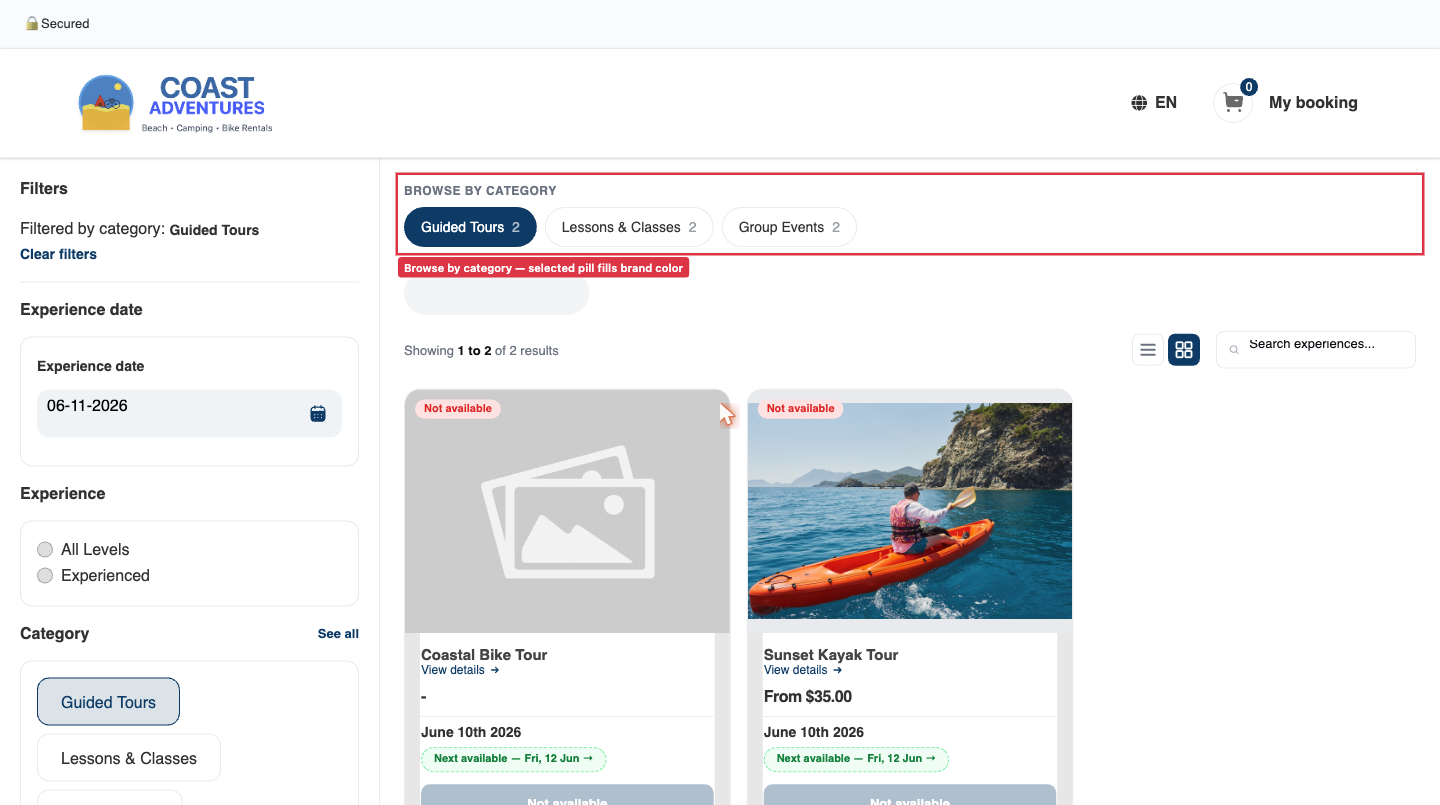
This is one simple, clean design — a row of minimal themed pills. There's nothing else to configure: a single toggle turns it on for both modules at once.
Turning the Category Browser On or Off
- Go to Settings > Booking widget.
- On the Widget settings tab, in the Browsing & listings section, find the Show category browser at the top of listings toggle.
- Flip it on. Your change saves automatically.
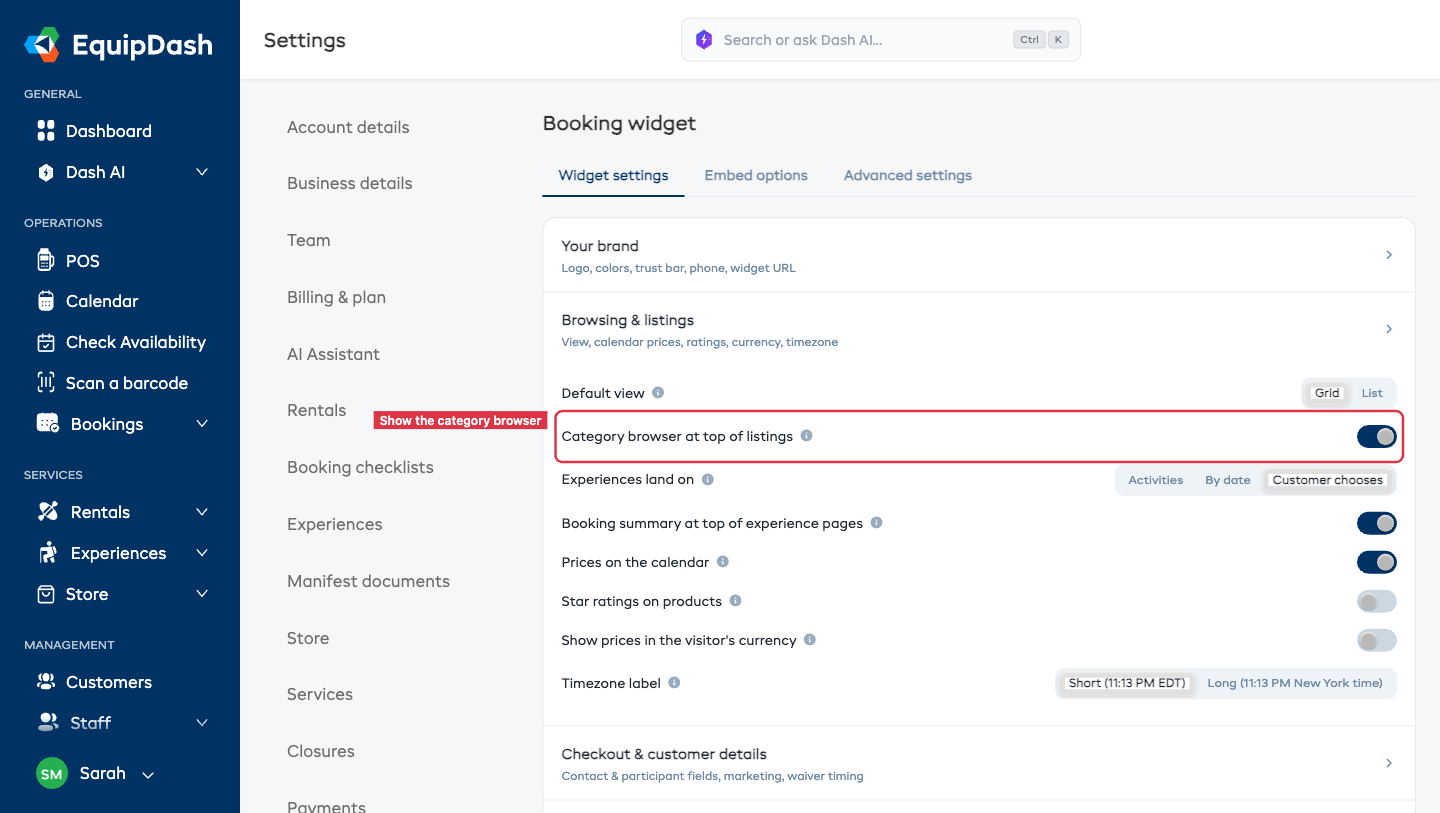
The toggle is off by default and controls both the Experiences and Rentals listings — turning it on adds the pill row to both.
Wizard Mode
The wizard is a guided, step-by-step booking flow that walks customers through the process. Instead of browsing a catalog and adding items to their booking, customers are guided through choosing dates, selecting products or experiences, and checking out in a structured sequence.
When to Use the Wizard
The wizard works best when:
- You want to simplify the booking process for first-time customers
- Your products are organized by skill level or category and you want to guide selection
- You want customers to pick dates first, then see only what is available
The standard browse-and-book flow works best when:
- Customers already know what they want
- You have a large catalog and want customers to explore freely
- Customers often book multiple different items in one go
Enabling the Wizard
You can enable the wizard separately for rentals and experiences.
- Go to Settings > Booking widget.
- Open the Advanced settings tab and find the Guided wizards section.
- On the Rentals tab, find the Enable wizard flow for guided bookings? toggle.
- Turn it on to activate the wizard flow for rentals.
- Switch to the Experiences tab and repeat if you also want a wizard flow for experiences.
The wizard toggle saves automatically when you flip it.
How the Wizard Works for Customers
When the wizard is enabled, customers see a step-by-step flow:
- Select dates — Choose pickup and return dates (rentals) or select a date (experiences)
- Choose a level (if skill levels are configured) — Pick their skill level
- Select items — Browse available products or experiences filtered by their choices
- Checkout — Enter details and complete the booking
Skill Levels
Skill levels let you organize your products or experiences into groups based on ability. They are used in the wizard flow to help customers find the right option.
Example Skill Levels
- A bike rental shop might use: Beginner, Intermediate, Advanced
- A watersports company might use: First Timer, Some Experience, Expert
- A ski rental shop might use: Learner, Intermediate, Advanced, Expert
Creating Skill Levels
- Go to Settings > Booking widget.
- Open the Advanced settings tab and find the Guided wizards section.
- Make sure the wizard is enabled on the Rentals or Experiences tab.
- Click Manage experience/skill levels.
- A side panel opens where you can create and organize your levels.
- For each level:
- Enter a name (e.g., "Beginner").
- Optionally add a short description (up to 15 words) explaining who this level is for.
- Click + Add additional level to add more (up to 10 levels).
- Click Save.
Assigning Items to Levels
After creating your levels, you need to tell the widget which products or experiences belong to each level.
- Back in the Guided wizards section, each level appears with Categories and Products dropdowns (or Categories and Experiences dropdowns on the Experiences tab).
- Use the dropdowns to assign categories or individual items to each level. The assignments save automatically.
Other Display Options
Separately from the wizard / view toggle, several newer display settings are covered in their own articles:
- Default listing mode — Activity-first vs date-first vs customer choice (Experiences only)
- Timezone display style — Short abbreviation vs long timezone name
- Overview block — At-a-glance tile row on item detail pages
- Content blocks — Structured sections on every item page
Booking Summary on Experience Pages
Each experience detail page can open with a full-width banner that shows the experience title, category, starting price, and a quick day-by-day time picker right above the image gallery. The picker lets customers see what's bookable on the selected date, jump back or forward a day, and click straight through to a time slot — all without scrolling.
You can turn this banner on or off depending on how you want customers to land on the page.
When to Keep It On
The banner is on by default and works well when:
- You want customers to see availability immediately, before scrolling
- Most of your experiences have multiple daily time slots
- Conversion matters more than letting customers read the description first
When to Turn It Off
You may prefer to switch it off when:
- You want the page to open with the image gallery and description — a more editorial feel
- Most of your experiences are one-off (e.g., a single tour at a fixed time) where the time picker adds little value
- You'd rather customers read the full details before being asked to commit to a time
When the banner is off, the experience title, category, and starting price still appear at the top of the page. Only the prev / selected / next time picker is hidden — customers pick a date and time using the calendar in the sidebar and the existing tri-column day view further down the page.
Turning the Booking Summary On or Off
- Go to Settings > Booking widget.
- On the Widget settings tab, in the Browsing & listings section, find the Show booking summary at top of experience pages toggle.
- Flip it on or off. Your change saves automatically.
The change applies to every experience detail page on your widget immediately.
Show Your Phone Number on the Widget
You can display your business phone number in the widget header as a tap-to-call link, so a customer browsing on their phone can reach you in one tap if they have a question before booking.
- Make sure your phone number is set in Settings → Business details.
- Go to Settings → Booking widget.
- On the Widget settings tab, in the Your brand section, find Show my phone number on the widget.
- Flip it on. Your change saves automatically.
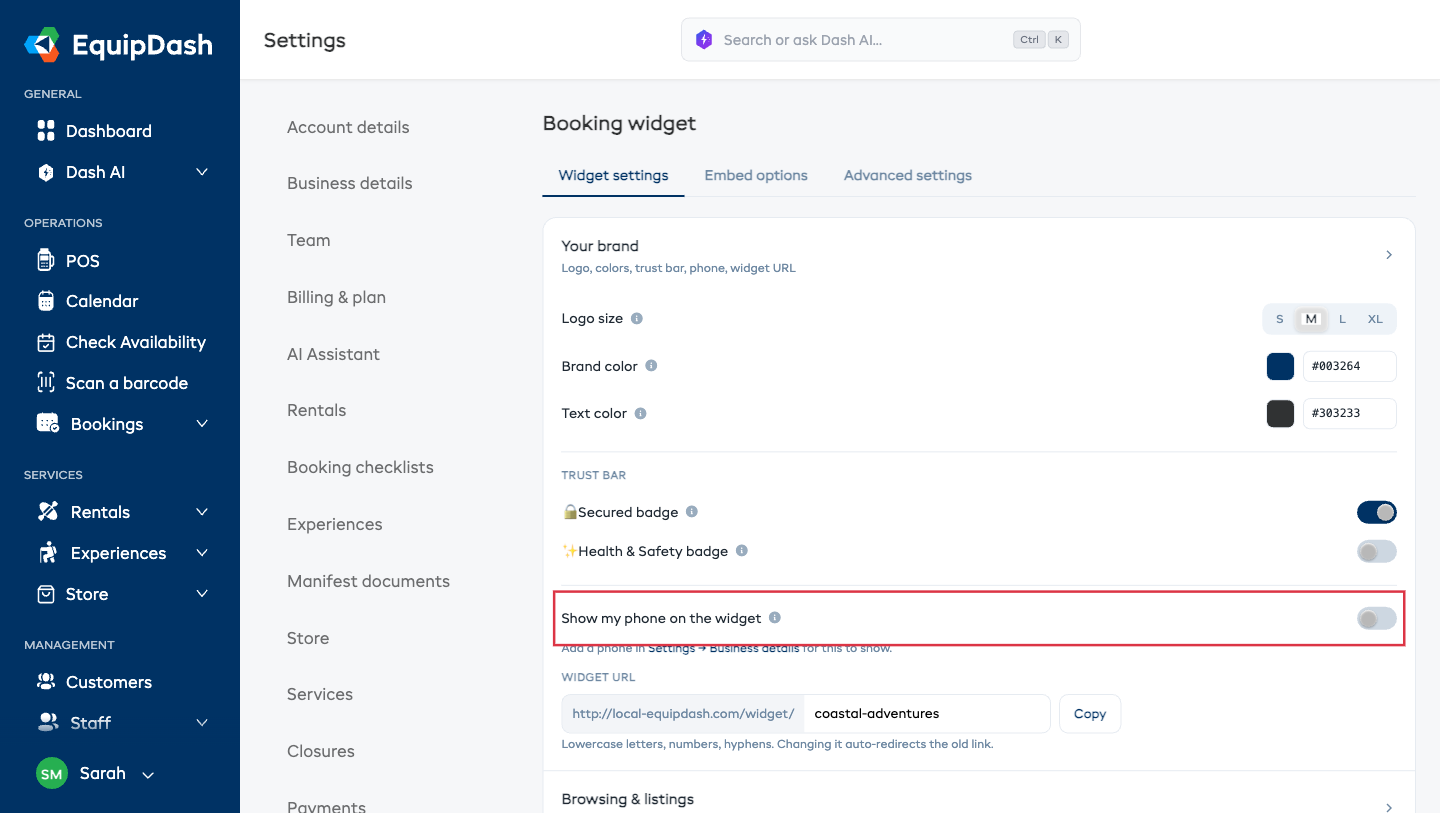
The toggle is off by default. When on, it shows the number from Business details in the widget header on every page — there's nothing to type in twice. If you haven't added a phone number yet, EquipDash reminds you to add one under Business details.
Voucher Sales Toggle
If you want to sell gift vouchers through the widget:
- Go to Settings > Booking widget.
- On the Widget settings tab, in the Selling & conversion section, find the Enable gift card/voucher sales toggle.
- Turn it on. Your change saves automatically.
When enabled, a Purchase page URL appears below the toggle. You can share this link or embed it on your website alongside rentals and experiences.