Reuse Additional customer information
The Additional customer information section — What's included, What's not included, Highlights, Pickup details, What to bring, Restrictions, Cancellation notes, and any custom sections you have added — is often the same, or nearly the same, across similar items. Instead of retyping it on every product, you can copy the whole section from one item onto others in a few clicks.
This works between products and experiences, in both directions.
Where to find it
- Go to Rentals > Products and click a product name to open it (or Experiences for an experience).
- On the Details tab, find the Additional customer information card.
- Click the copy icon in that card's header (next to the arrow that opens it).
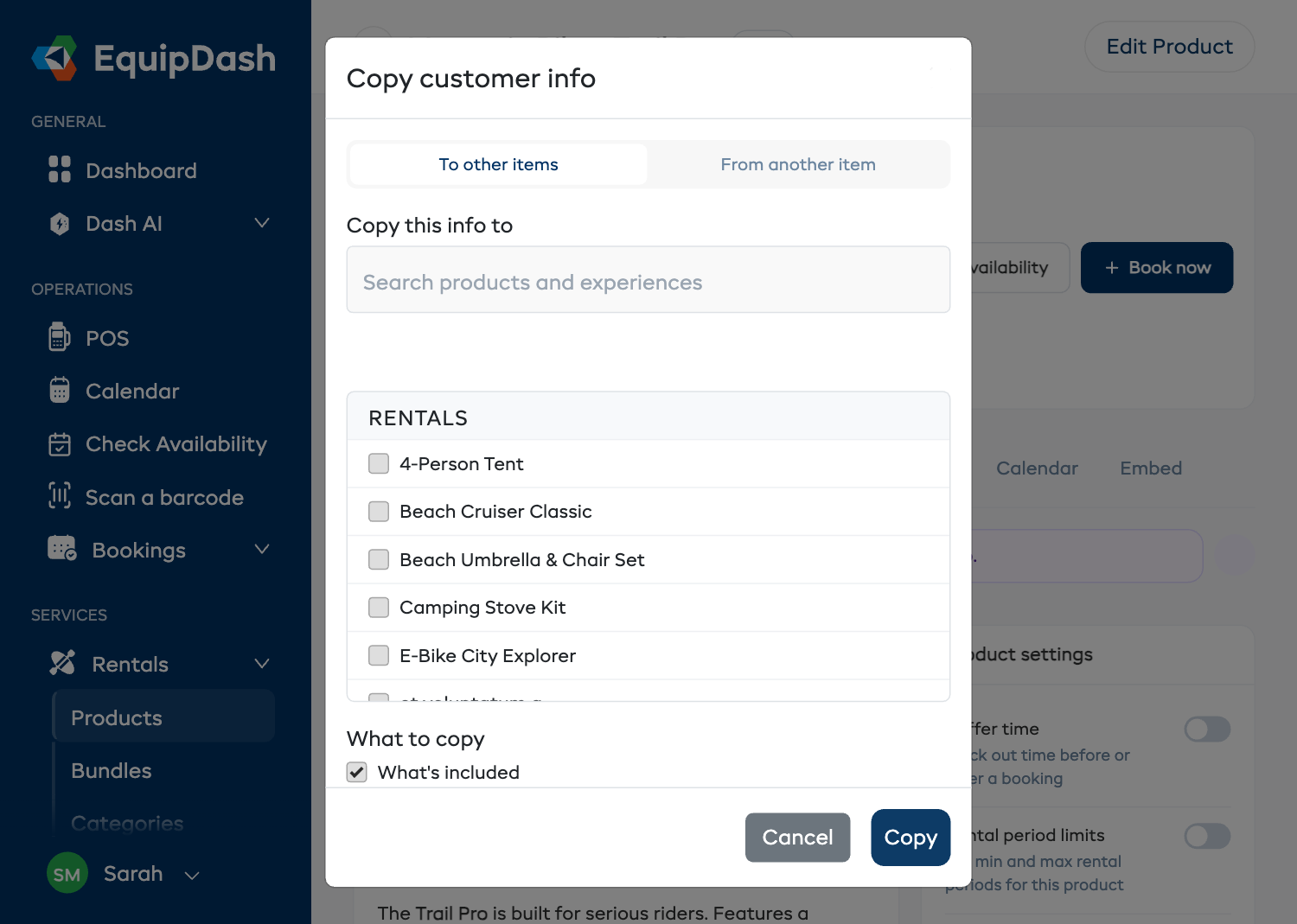
Copy this item's info onto others
Set up one item exactly how you want it, then push that info onto the rest.
- Open the Copy Additional customer information window and keep To other items selected.
- Tick every product or experience you want to copy onto. Use the search box to find items quickly.
- Under What to copy, every section that has content is ticked for you. Untick any you don't want to send — for example, copy just Cancellation notes to lots of items without touching each one's own What's included.
- Click Copy. You'll see a confirmation like "Copied to 5 items."
Start a new item from an existing one
Filling in a brand-new item? Pull the info in from one you've already done.
- Open the Copy Additional customer information window and choose From another item.
- Pick the product or experience to copy from.
- Under What to copy, untick anything you don't want, then click Copy into this item.
Good to know
- Copying replaces the sections you pick on the items you choose. Sections you leave unticked stay exactly as they are.
- Products and experiences share most sections. Experiences also have Itinerary and Health & safety; if you copy an experience onto a product, those two are simply left out (products don't use them).
- Translations update on their own. If you offer your booking widget in more than one language, copied sections are re-translated in the background — no extra step.
- You need permission to edit the items you're copying onto. If you can't edit a product or experience, it won't appear in the list.