Show a map of where to go
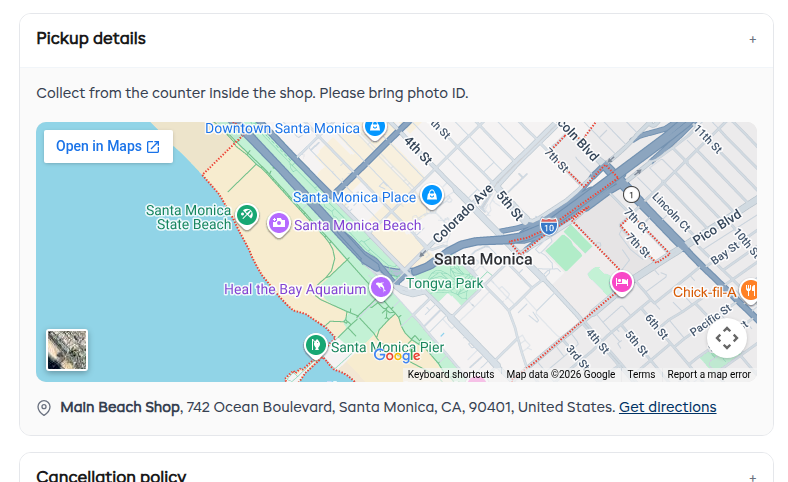
Customers ask "where do I actually turn up?" more than almost anything else. Add the address to an item and your booking page shows a map under your instructions, with the address and a Get directions link that opens Google Maps on their phone. The address goes in their confirmation email too.
If you have already filled in your addresses under Settings > Locations, this takes one click per item.
Add it
- Go to Rentals > Products and click a product name to open it, or Experiences for an experience.
- On the Details tab, open the Additional customer information card.
- Turn on Pickup details (called Check-in details on an experience) and click its title to open it.
- Under Where is it?, pick one of the options below. A small map appears so you can check the pin landed on the right street before a customer sees it.
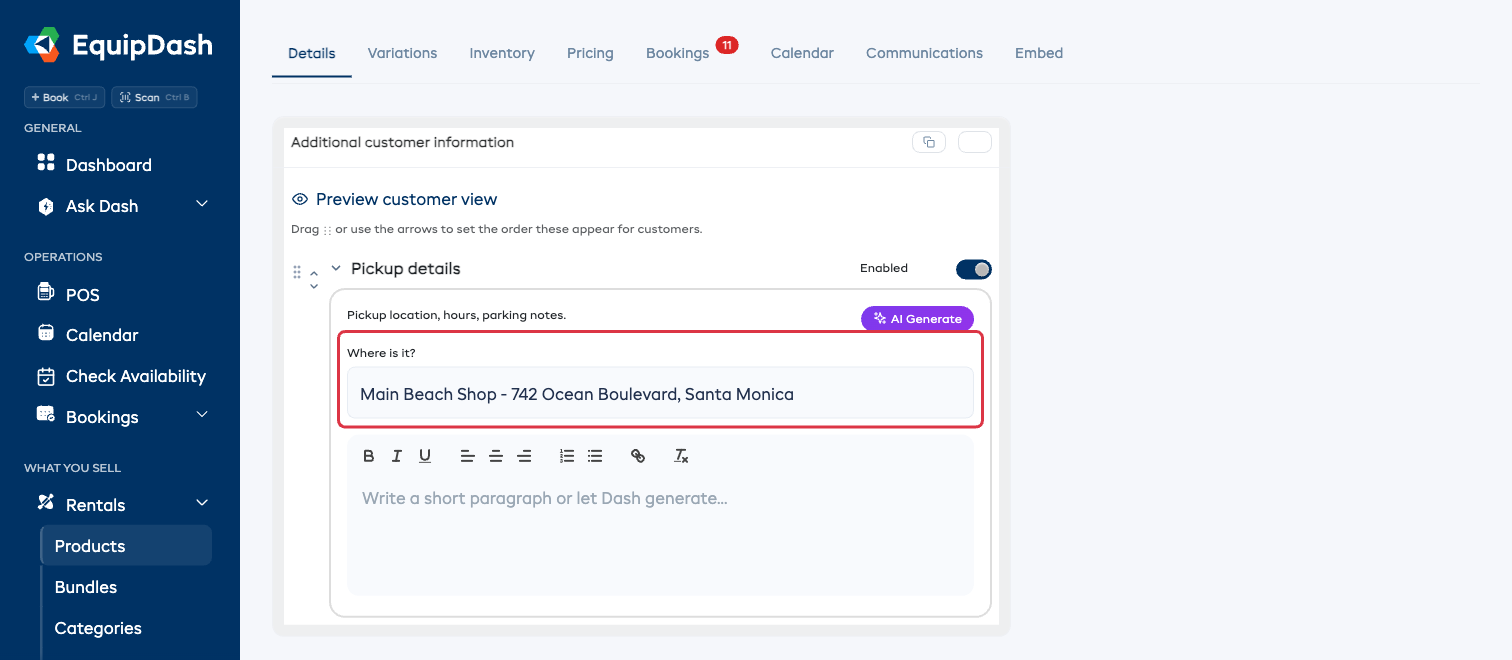
That's it. It saves as you go.
What your customer sees
Your notes come first, then the map, then the address with a Get directions link that opens Google Maps on their phone.
The choices
| Choice | Use it when |
|---|---|
| No map | You'd rather not show one. This is how every item starts. |
| One of your locations | The usual answer. Each one is listed by name and street, straight from Settings > Locations. |
| A different address | The meeting point isn't one of your own sites - a car park, a trailhead, a jetty, a hotel lobby. Type it in the box that appears. |
| The location the customer picks up from | Rentals only, and only if you have more than one pickup location. The map shows whichever branch that customer chose. |
Good to know
- Fix an address once. If you picked one of your saved locations, correcting it under Settings > Locations fixes it on every item that uses it. You don't re-edit them one by one.
- The pin is in the wrong spot? Choose A different address and type it more precisely. You can also paste coordinates (like
-33.8688, 151.2093) if you meet somewhere with no street address. - Rename the section. If "Pickup details" isn't your wording, rename it once under Settings > Booking widget > Sections and every item follows.
- Copy it to your other items. The address travels with the section when you reuse Additional customer information.