Arranging Display Order
By default, your products show up in the order you happen to add them. The Arrange order screen lets you set the exact order customers see — in your booking widget, on the POS, in the app, and through the API. Set it once and it applies everywhere.
You arrange two things:
- Category order — which category comes first (Bikes before Shoes, say). This also sets the order of the category filter buttons in your booking widget.
- Product order within each category — which product sits at the top of each category, so your hero items lead.
The result customers see is a single list: each category's products grouped together, in the order you chose.
Opening the Arrange screen
- Go to Rentals → Products in the left sidebar.
- Click Arrange order in the top-right corner.
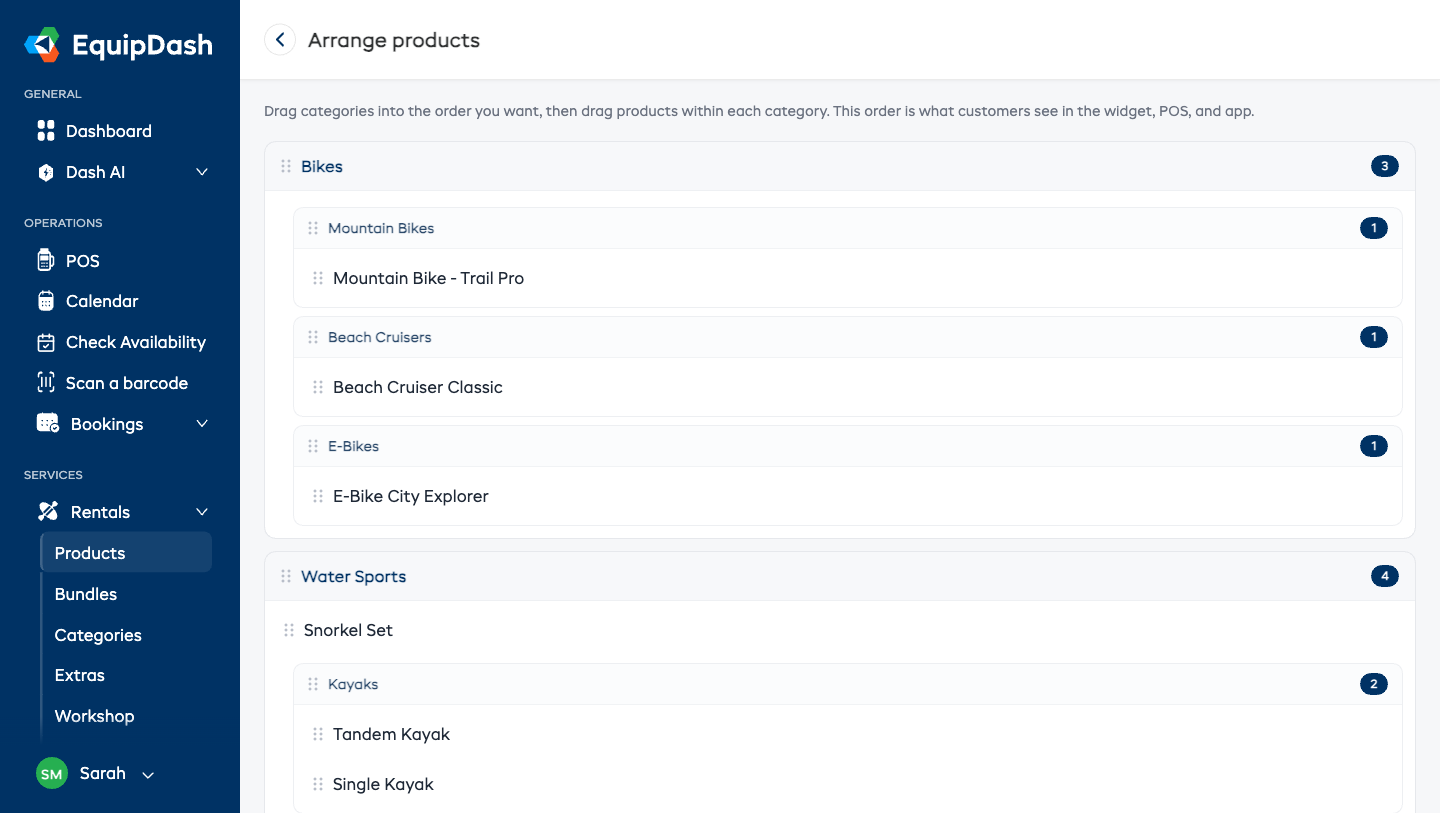
Reordering categories
Each category is a section with a drag handle (the dotted grip) on its header.
- Click and hold the grip on a category header, then drag it up or down.
- Release it where you want it. The new order saves automatically — there's no Save button.
Subcategories
If a category has subcategories, they appear nested inside it. Drag a subcategory's handle to reorder it within its parent — its products always stay grouped under the right heading, exactly as customers see them.
Reordering products within a category
Inside each category, every product has its own drag handle.
- Click and hold the grip next to a product, drag it up or down within its category, and release.
- The order saves the moment you drop it.
Products can only be reordered within their own category. To move a product into a different category, open the product and change its category — it then lands at the bottom of the new category, ready for you to position.
The Uncategorized group
Products without a category collect in an Uncategorized group. By default it sits at the bottom. Drag its handle to move it anywhere among your categories, just like any other section.
How new products are ordered
When you add a new product, it goes to the bottom of its category automatically, so your existing order is never disturbed. Drag it up to where you want it whenever you like.
Where this order shows up
The order you set here is used everywhere customers (and integrations) see your catalog:
- Your booking widget — both the product list and the category filter buttons.
- The POS product picker.
- The app.
- The API product list (the default order, unless a specific sort is requested).
Experiences and store products
Experiences and store products work exactly the same way. Open Experiences or Store → Products and click Arrange order in the top-right corner to set their display order.