Managing Products
Once your products are created, the Products table is your central hub for managing everything. You can search, filter, sort, edit, duplicate, and remove products from here. Most ongoing edits happen on the Product Detail page itself, which is built around inline-edit cards across seven tabs.
The Products Table
Navigate to Rentals > Products to see all your products in a searchable, sortable table.
The table shows:
| Column | Description |
|---|---|
| Product ID | The unique identifier for the product |
| Image | A thumbnail image of the product |
| Product Name | The product name |
| SKU | The stock-keeping unit code (if set) |
| Category | The assigned product category |
| Status | Active, Draft, or Disabled |
| Price | The product's base price |
| Action | Edit (pencil icon), duplicate (copy icon), and delete (trash icon) |
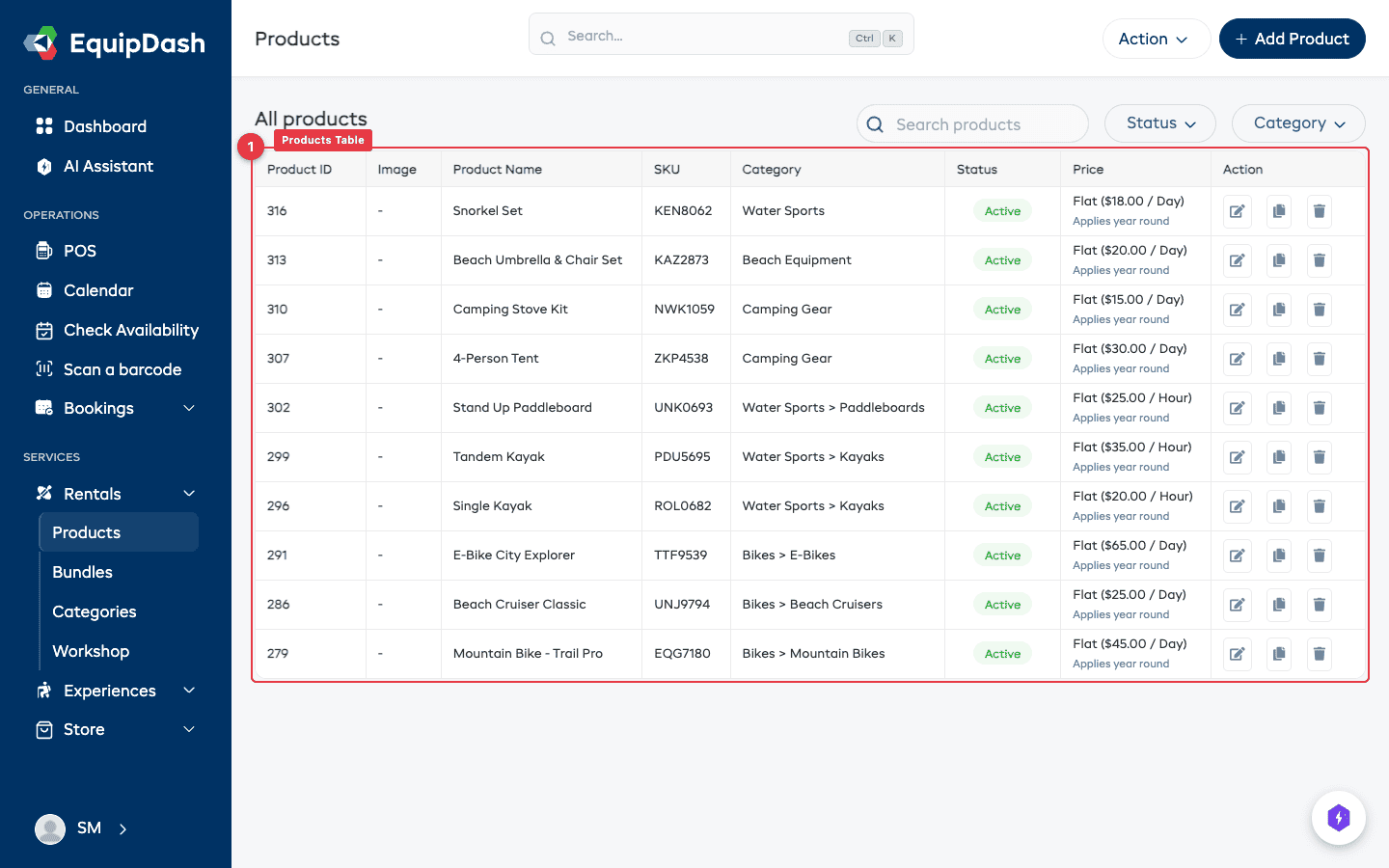
Click the gear icon near the top of the table to customize your columns. Tick a column under Available columns to show it, untick one under Active columns to hide it, and drag columns into the order you prefer. Your layout is saved and shared with your whole team.
Searching and Filtering
Search
Type in the Search products field above the table to find products by name or SKU. Results update as you type.
Filter by category
- Click the Category dropdown.
- Select a category to show only products in that group.
- Child categories are included automatically when you filter by a parent category.
Filter by status
- Click the Status dropdown.
- Choose Active, Draft, or Disabled to filter the table.
Clear filters
Click Clear Filters to reset all search and filter criteria.
Sorting
Click any column header to sort the table by that column. Click again to reverse the sort order. A small arrow indicates the current sort direction.
The Product Detail Page
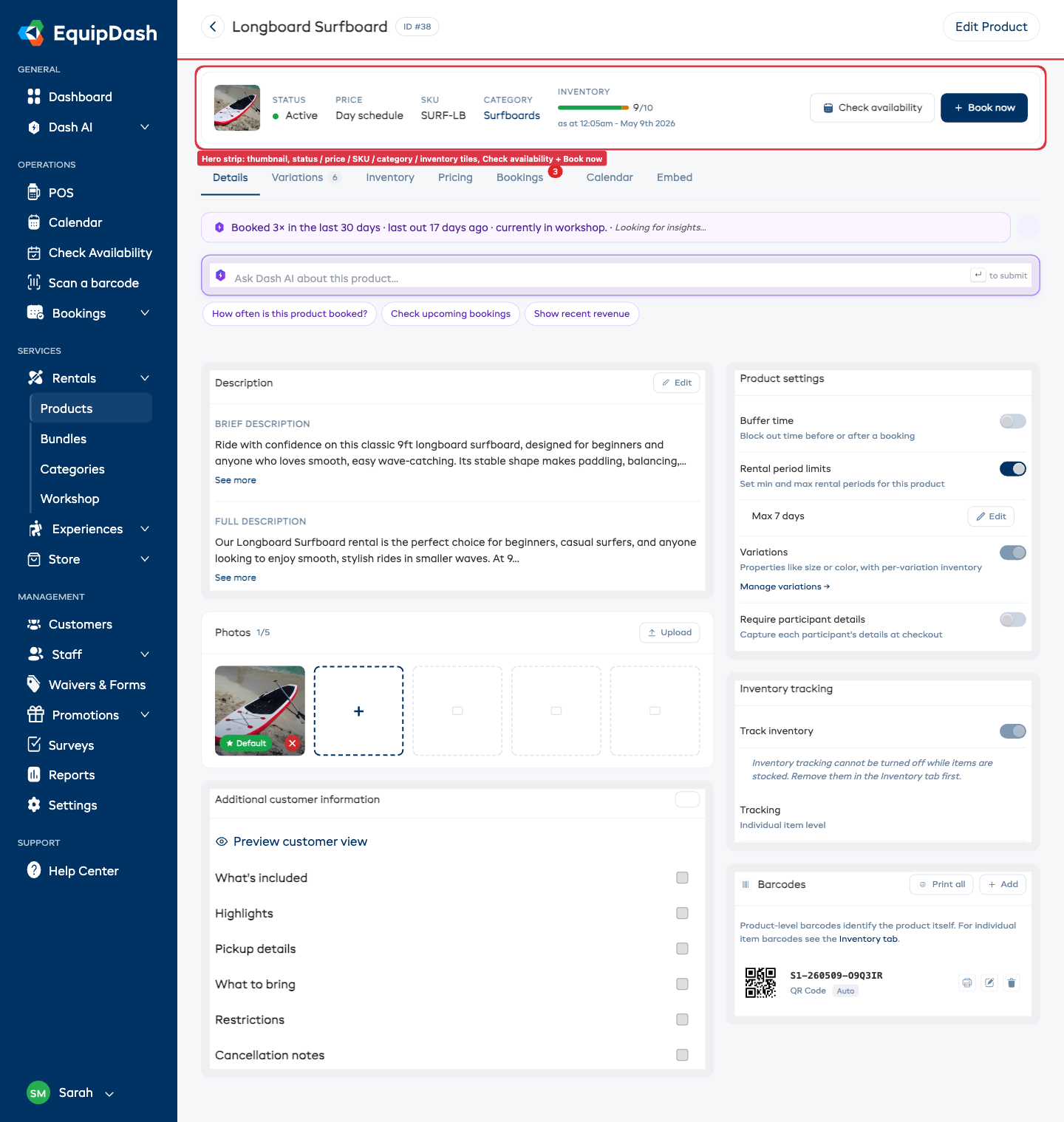
Click any product name in the table to open its Product Detail page. The page is laid out around three areas:
- Page header — back arrow, product name, ID pill, and a small Edit Product button (which opens the legacy slide-out panel for the rare fields not yet inlined).
- Hero strip — thumbnail plus quick-glance tiles for Status, Price, SKU, Category, and Inventory, with Check availability and + Book now call-to-action buttons on the right.
- Tab strip — seven tabs that each open an inline workspace: Details, Variations, Inventory, Pricing, Bookings, Calendar, Embed.
Most edits — descriptions, photos, behavior toggles, pricing, variations, inventory rows, barcodes — happen inline on the relevant tab. You no longer need to step through a wizard to change a single field.
Editing a Product
To change a product's details:
- Click the product name in the table to open its Product Detail page.
- Open the tab that matches what you want to change (for example Details for descriptions and behaviors, Pricing for rates, Variations for size or color options).
- Click the field, switch, or Edit link inside the relevant card. Changes save inline as soon as you confirm.
The legacy Edit Product panel is still available from the small Edit Product button in the page header if you prefer to work through the older multi-step form. Both routes write to the same fields.
To change it on the booking page your customers see, click Visual editor at the top of the page. See Visual Editor.
You can also click the edit icon (pencil) in the Action column of the Products table — that takes you straight to the Product Detail page.
Duplicating a Product
Duplicating creates an exact copy of a product (including pricing and settings) as a new draft. This is handy when you need to create a similar product without starting from scratch.
- In the products table, click the duplicate icon (copy icon) in the Action column of the product row.
- Confirm the duplication in the dialog.
- A new product will be created as a Draft with the name of the original product. You can then open it to make changes.
Changing Product Status
Products have three statuses:
- Active -- The product is live and available for booking.
- Draft -- The product is saved but not visible to customers or available for booking.
- Disabled -- The product is hidden from customers and cannot be booked.
To change a product's status:
- Open the product's Product Detail page.
- Click the small Edit Product button in the page header.
- Change the Status setting.
- Save your changes.
Embedding a Product
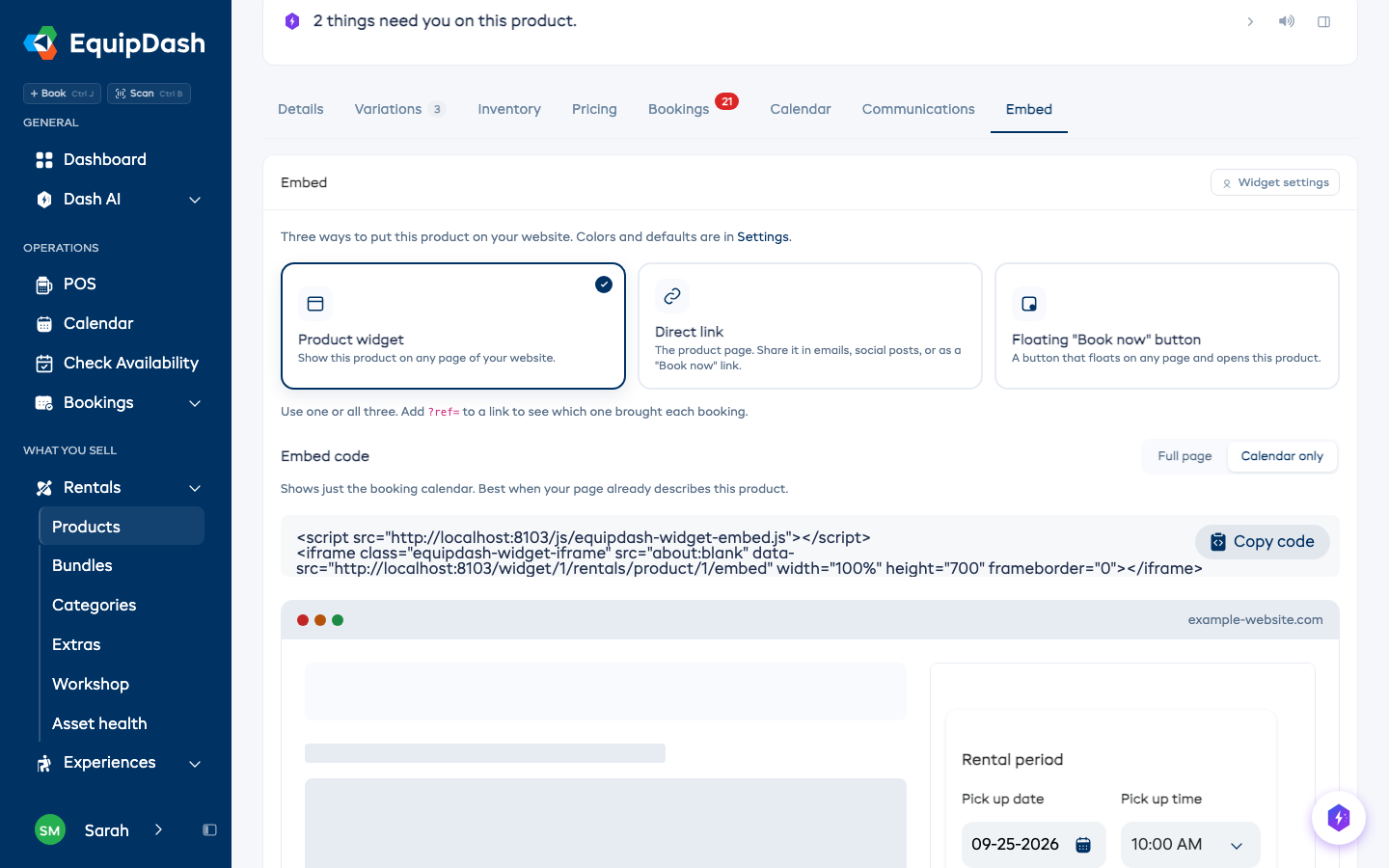
You can share or embed an individual rental straight from the Embed tab on its detail page — the same options as the central embedding screen, pre-set to this product.
- Open the product's Product Detail page and click the Embed tab.
- Pick how you want it on your site:
- Product widget — a compact booking widget for this one product, embedded inline on its page.
- Direct link — this product's full booking page, for emails, social posts, or a "Book now" link.
- Floating "Book now" button — a floating button on any page that opens this product in a pop-up.
- Click Copy code (or copy the link) and paste it on your site. The Live preview underneath shows exactly how it will look.
See Embedding on Your Website for all the embed types and how to paste the code into WordPress, Squarespace, or Wix.
Changing Several Products at Once
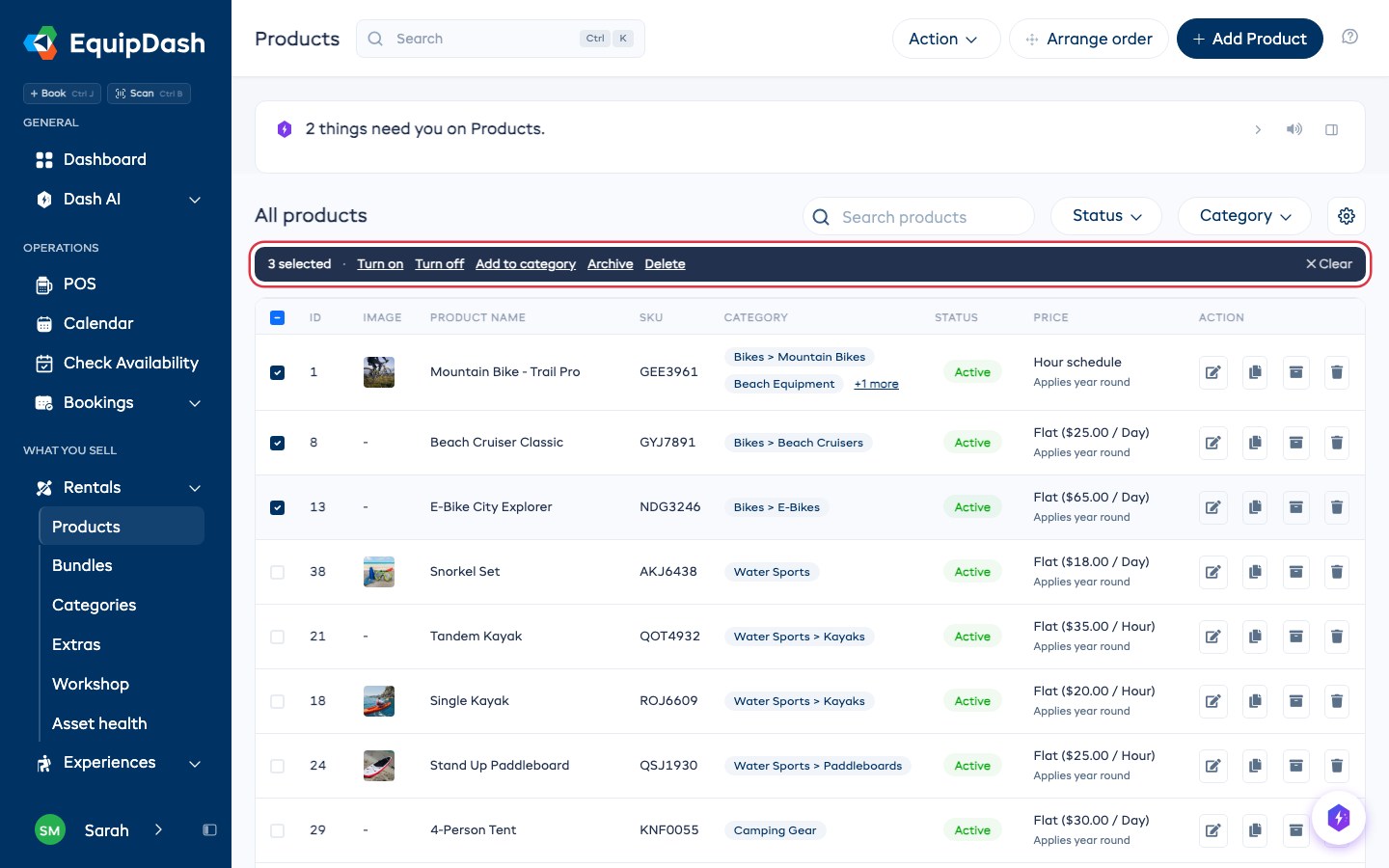
Tick the box at the start of each row, or the box in the header to tick the whole page. A dark bar appears above the table with what you can do to them together:
- Turn on or Turn off - make them bookable, or hide them from customers. Drafts are skipped: finish a draft on its own page first.
- Add to category - pick a category to add them to. Each product keeps the categories it already has.
- Archive - take them off your booking site and POS. To bring them back, set Status to Archived, tick them, and click Restore.
- Delete - products with bookings are kept, and the confirm tells you how many before anything is deleted.
To reach more than one page, tick the header box, then click Select all in the bar. It picks every product your search and filters match.
Deleting a Product
Deleting a product permanently removes it from your account.
- In the products table, click the delete icon (trash icon) in the Action column of the product row.
- Confirm the deletion in the dialog.
Deleting a product is permanent and cannot be undone. A product with bookings cannot be deleted, so its booking history stays. Archive it instead.
Related Guides
- Creating a Product -- Adding a new product.
- Product Pricing -- Adjusting product pricing.
- Inventory Units -- Managing individual inventory items.
- Organizing Products by Category -- Grouping products into categories.
- Quick Book a Rental in 30 Seconds -- The + Book now button on the product detail page.
- Embedding on Your Website -- Put this product on your own site.