Cohorts Growth+This feature requires the Growth+ plan or higher
Most programs run more than once. You teach the same beginner course every term; you run the same holiday camp every summer. Rebuilding it each time — same experiences, same price, same description — is wasted work, and it scatters the numbers across programs that look identical but aren't linked.
So you build the program once, and each time you run it you add a cohort:
- The program holds everything that stays the same: the experiences, the pricing, the description, the photos, the waiver, the categories.
- A cohort is one run of it, on its own dates. It sells, takes bookings, and tracks its own participants and revenue.
You get your first cohort when you create the program — see Creating a Program. After that you add one per run.
Creating a cohort
- Open the program from Experiences → Programs.
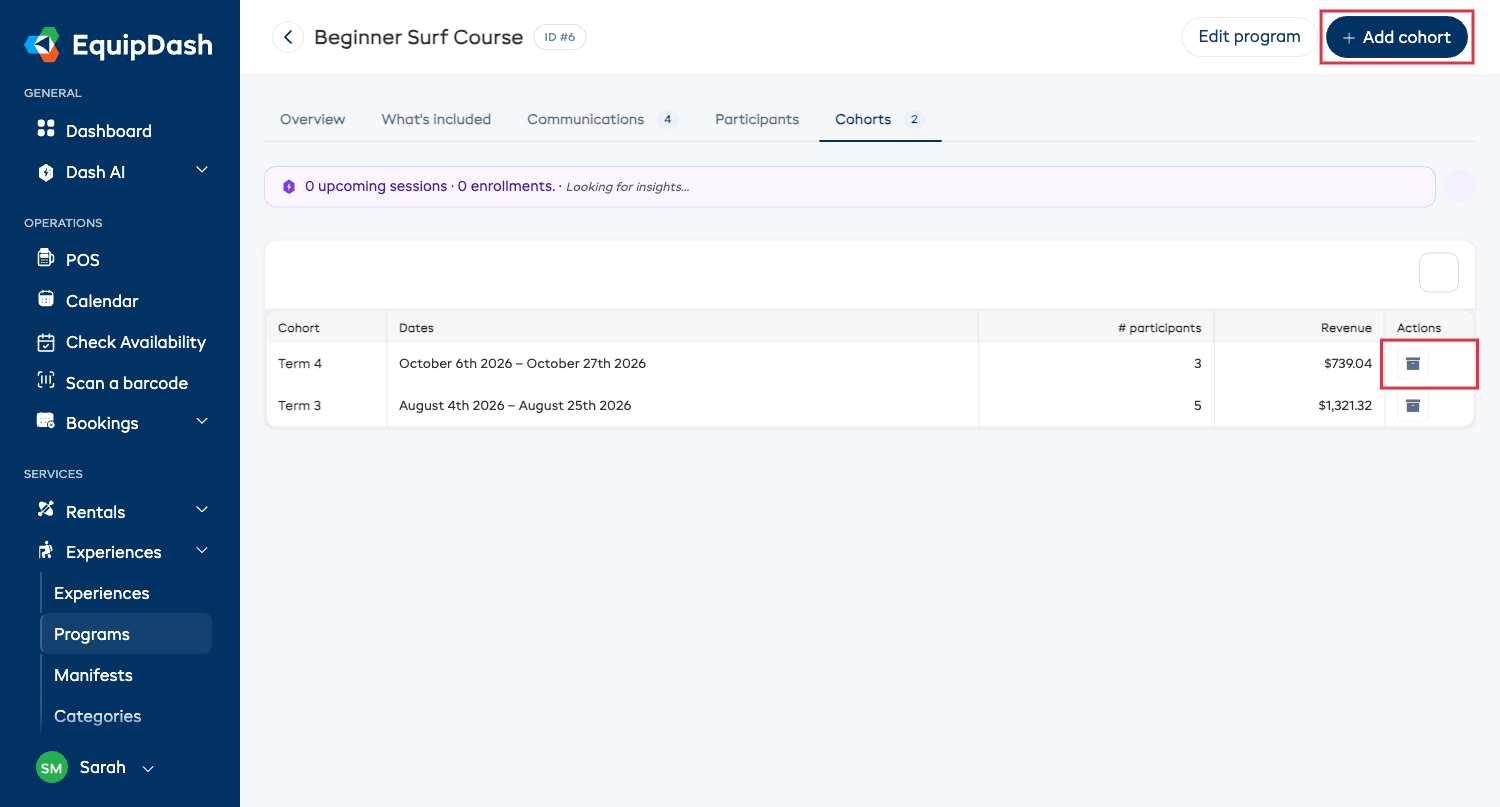
- Click Add cohort, top right.
Fill in the panel:
- Cohort name — what this run is called: "Term 3", "Summer intake", "January group". This is what staff and customers see when they pick a start date, so make it meaningful.
- Allow online bookings? — starts the same as the program. Turn it off for a private or invite-only run.
- Max enrollments per cohort — starts the same as the program. Change it for this run, or clear it for no limit.
Click Create cohort. You land on the new cohort's page.
Now add its dates on the What's included tab — that's the one thing a cohort doesn't inherit. See Adding dates.
What a cohort inherits — and what it doesn't
| Copied from the program | Not copied |
|---|---|
| The included experiences | The dates — every cohort picks its own |
| The pricing (and rate types) | Bookings and participants |
| The description | Customer choices (they're made of dates, so you set them per cohort) |
| Categories | |
| The waiver setting | |
| Photos (shown from the program, managed there) | |
| The online-bookings default and enrollment cap |
Once created, a cohort is an ordinary program in every other way — you can rename it, change its price, add or remove experiences, and turn its online bookings on and off without touching the program or its sibling cohorts.
The Cohorts tab
Every run of the program in one table:
- Cohort — its name, with an Archived or Cancelled badge if it's no longer selling.
- Dates — first to last session, or "No dates yet".
- Enrollments — everyone signed up for that run.
- Revenue — what that run has brought in.
Click a row to open the cohort. Use the gear to choose which columns you see.
Retiring a cohort
Use the archive icon in the Actions column to retire a single run — when a term has finished, say, or an intake never filled. It stops selling and drops off your listings; existing bookings stay exactly as they are, and you can bring it back at any time.
You're asked to confirm, and the cohort is named in the question so you can be sure you picked the right row.
To bring one back, filter the Cohorts tab on Experiences → Programs to Archived, open the cohort, and click Restore.
The program's own Participants tab pools every cohort together with a Cohort column — the answer to "who has ever taken this course?" It also carries each person's consent status, a signed summary for the whole roster, and bulk Send reminders.
Finding a cohort quickly
The Cohorts tab on Experiences → Programs lists every cohort across every program, not just one program's. From there you can:
- Search by cohort name.
- Filter by Program to see just one program's runs.
- Use Filter by date to show only cohorts running in a period — pick a preset like Next 30 days, or a custom range. The window shows as a chip you can clear with one click.
Rules worth knowing
- A program itself isn't booked — its cohorts are. If a program has no sellable cohort it's hidden from every selling surface, so customers never hit a dead end.
- A cohort of a cohort joins the same family. Create a new run from an existing cohort and it's still listed under the original program, not nested underneath.
- Photos are managed on the program. A cohort shows the program's photos with a link straight to it.
What gear the run needs
A cohort has its own Gear tab: everything to pull off the shelf for the whole run, grouped by activity, with the site each item comes from and the dates it's wanted on. Quantities are the most you need on any one date, never the term added up — so twelve of something used every week is twelve, not twelve times the number of sessions.
Print it as a tick-off sheet, or narrow it to a single date before a session. See The Gear List.
Taking a booking for a cohort
When someone signs up in person or over the phone, you don't have to go to the register and find the cohort again. Open the cohort and click New booking.
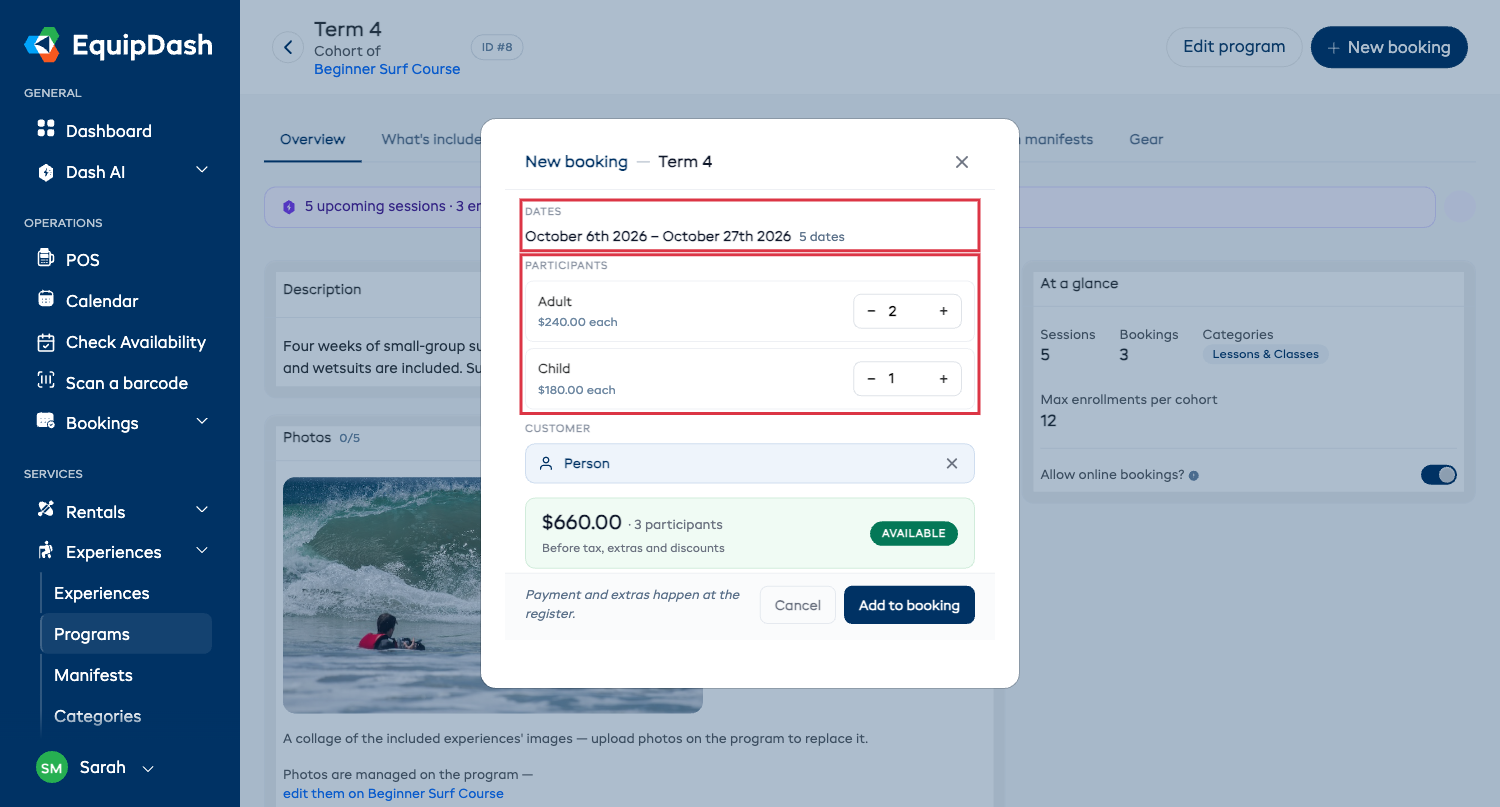
The panel only asks what's still open:
- Dates — shown, not asked. The cohort already has them.
- Options — if the cohort has a customer choice, pick which one they're taking.
- Participants — how many are coming. If the cohort is priced per rate type you get a stepper for each, and the running total updates as you go. You can type a number straight into the box instead of tapping +.
- Customer — search for them by name, phone or email, or add a new one without leaving the panel.
The pill on the right tells you whether you're ready to go: Available once you've picked who it's for, or the reason you can't yet — Not enough spots, Add participants, Pick a customer.
Click Add to booking and you land in the register with the cohort, the customer and the headcount already in the basket. Take payment there as usual — see Selling a Program.
Changing a program later
Editing a program's experiences, price or description does not rewrite cohorts that already exist — their customers have already bought what they bought. The change applies to cohorts you create from then on.
If you want an existing cohort updated too, open it and make the same change there.