Selling a Program Growth+This feature requires the Growth+ plan or higher
However a program is sold, the result is the same: one booking that covers every included session, one payment, and the customer on the roster for each date.
Online, on your booking page
A cohort appears on your booking page as soon as it has upcoming dates and Allow online bookings? is on. It shows in its own Programs section on the Experiences page, below Bundles.
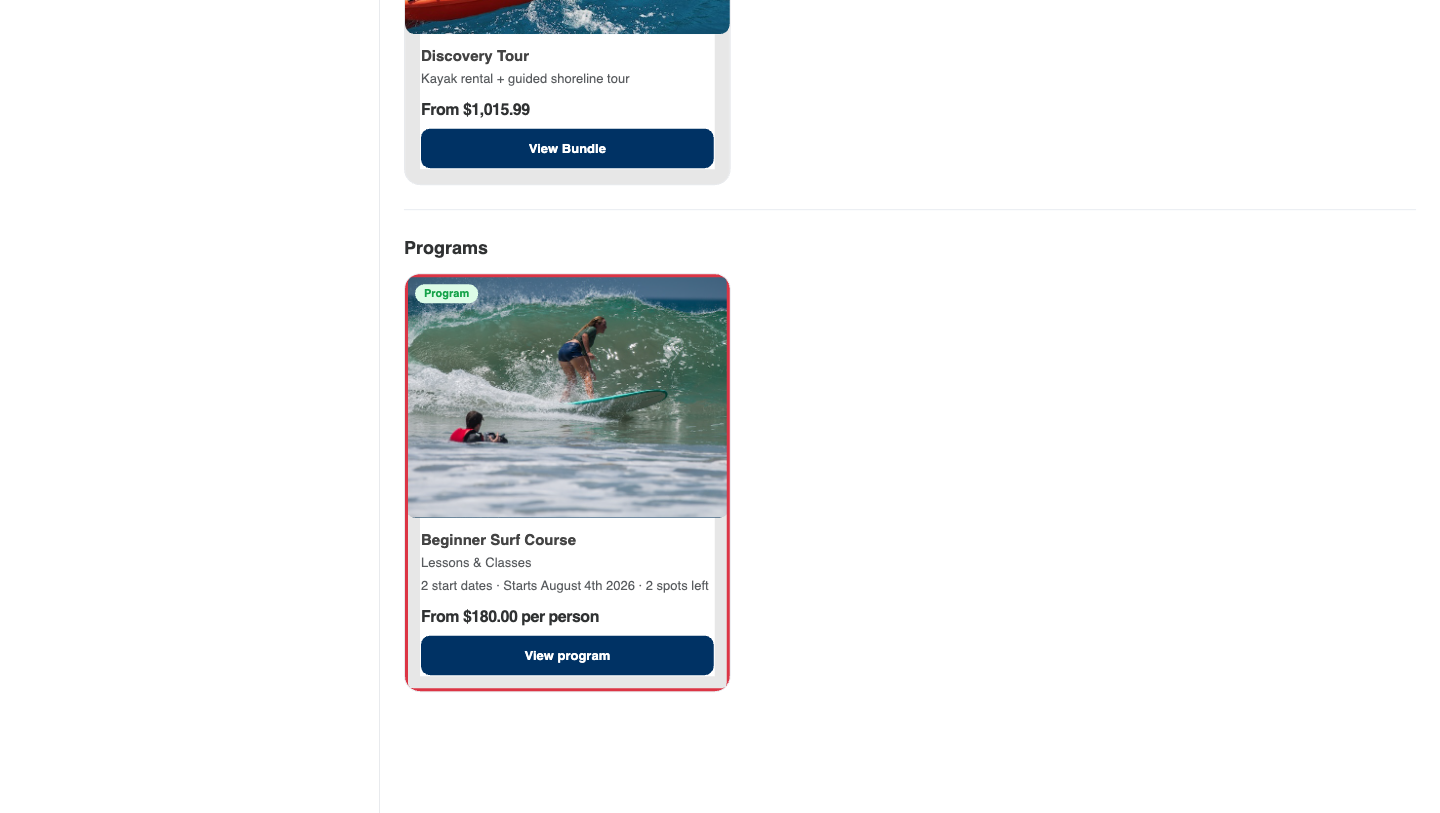
The card shows the program's photo (or the collage of its experiences), a Program badge, the category, how many start dates are open, when the next one starts, spots left, and the price — "From $180.00 per person" or "$X per group". When nothing is left it reads Sold out.
The program page
Clicking View program opens the full page.
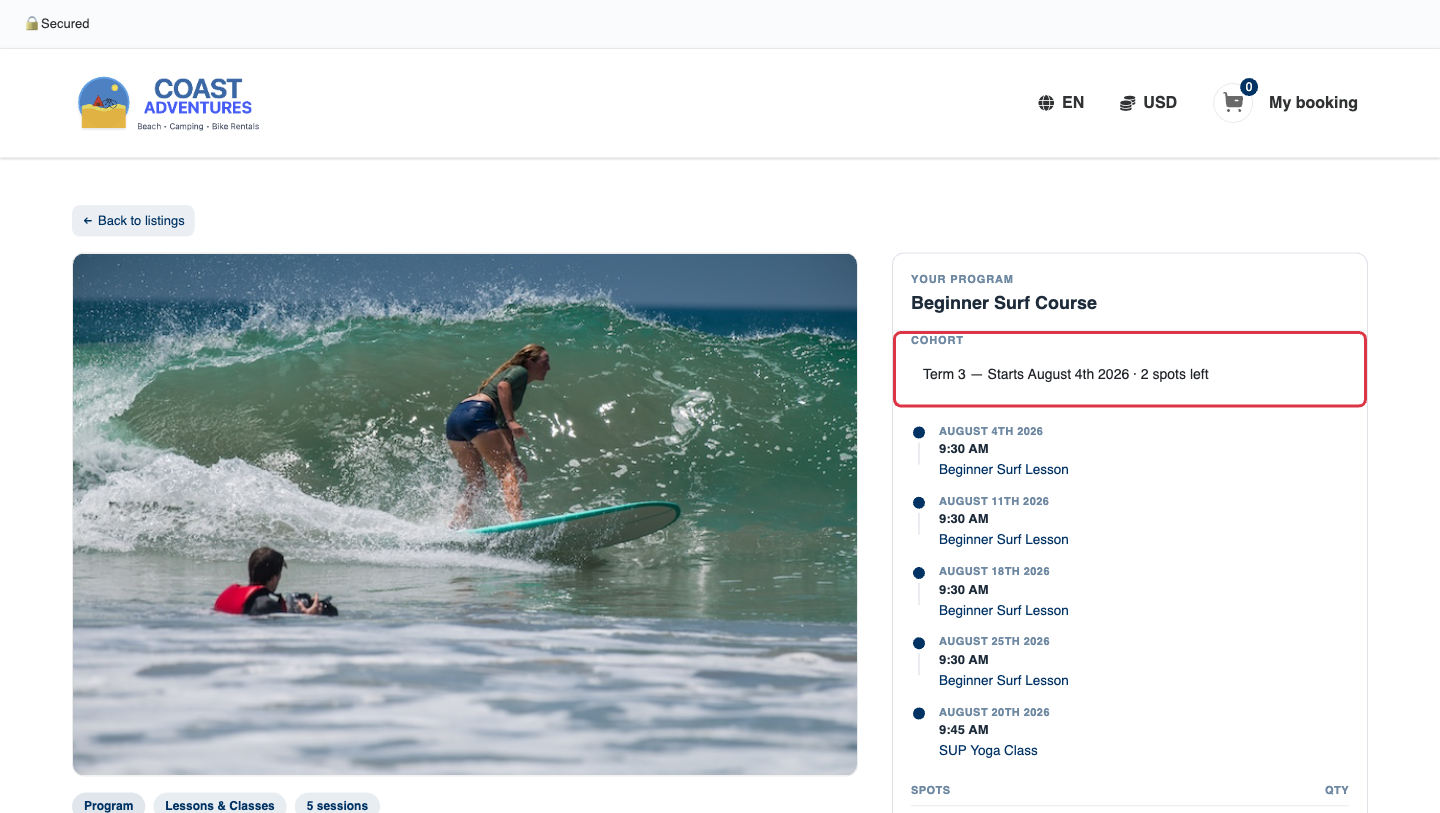
- Cohort — if the program runs several times, the customer picks which run they want. Each option shows its start date and spots left.
- The itinerary — every session in date order with its experience name. Each name links to that experience's own page, so a customer can read what a session actually involves.
- Availability — an Available pill with the spots left, or a note if the program has already started or isn't bookable.
Further down, What's included repeats the itinerary in full, with any pick one choices as radio buttons.
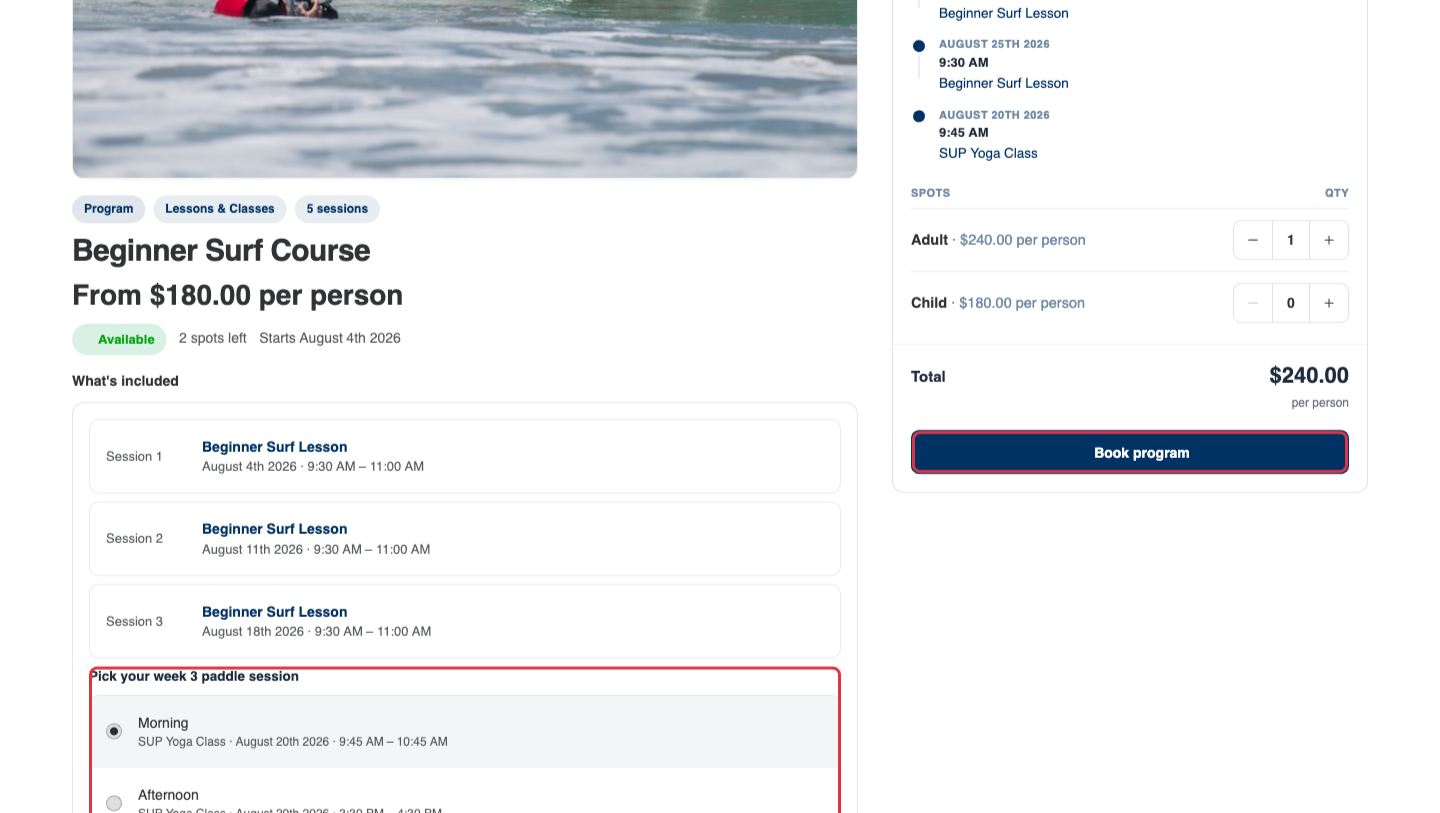
- Spots / Qty — one stepper per rate type for a per-person program (Adult, Child…), or a single stepper for a per-group or sum-of-sessions program.
- Total — updates as they choose.
- Book program adds every session to the basket in one go.
Checkout and confirmation
The program stays one line item all the way through. In the basket it reads as the cohort name with a Program badge and "5 sessions · 1 spot" — not five separate lines.
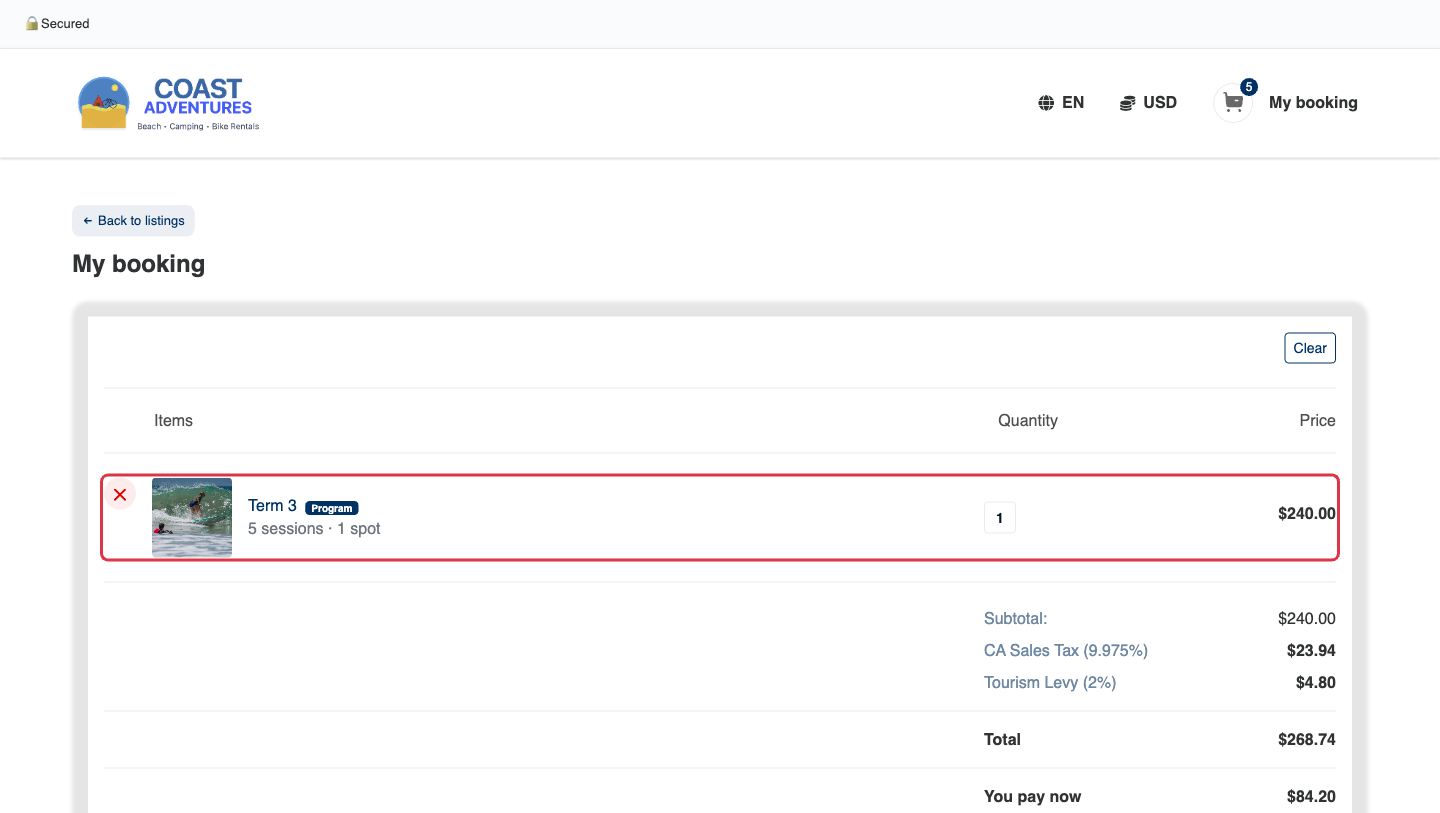
The same holds at checkout, on the confirmation page, and in the confirmation email, where the program appears as one block listing every session date, with the program's name linking back to its page.
At the counter, in POS
- Open POS and choose Experience.
- Click the Programs tab.
- Find the program and click View sessions.
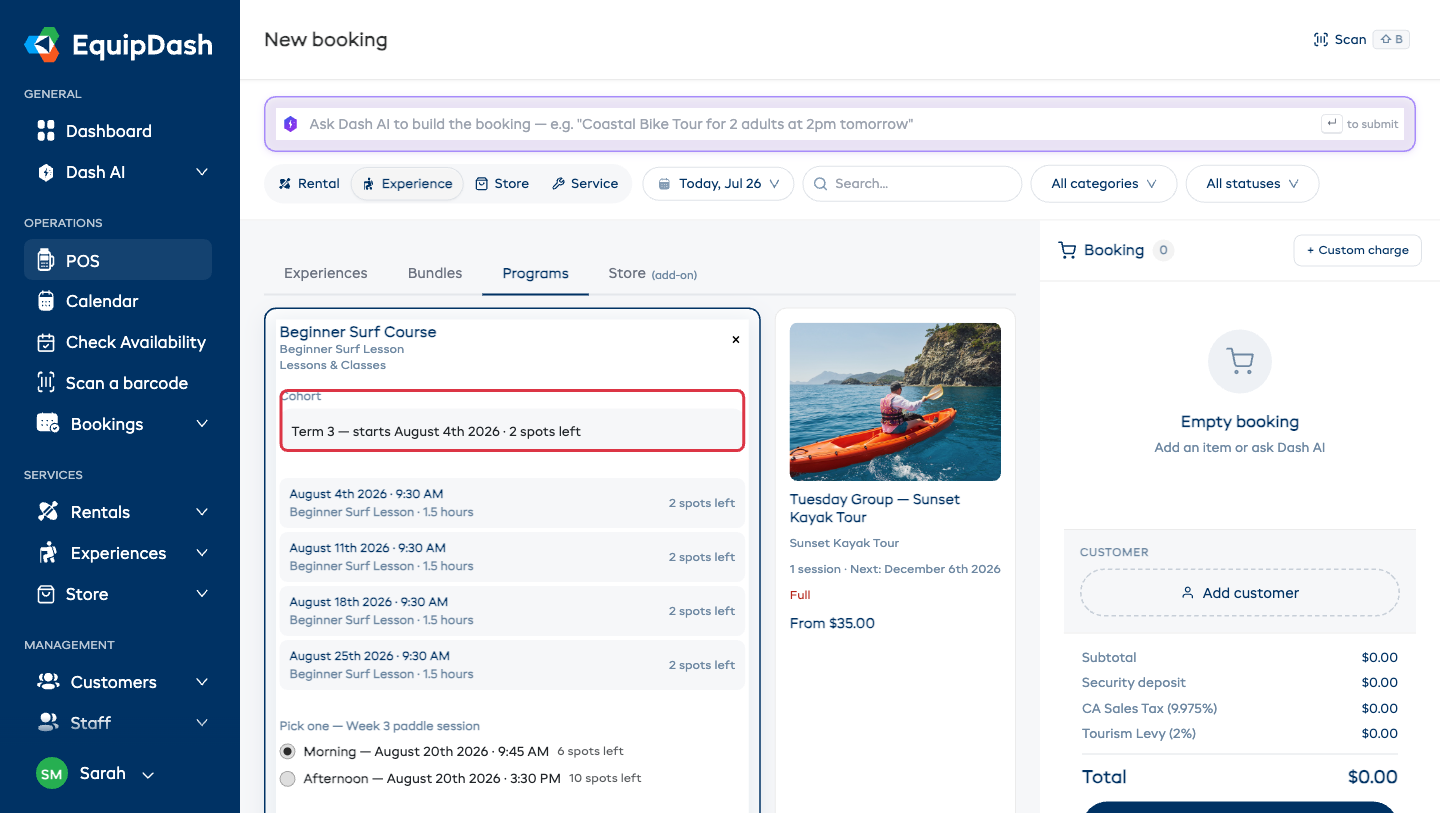
- Pick the Cohort if the program runs more than once — the sessions, prices and availability all follow your choice.
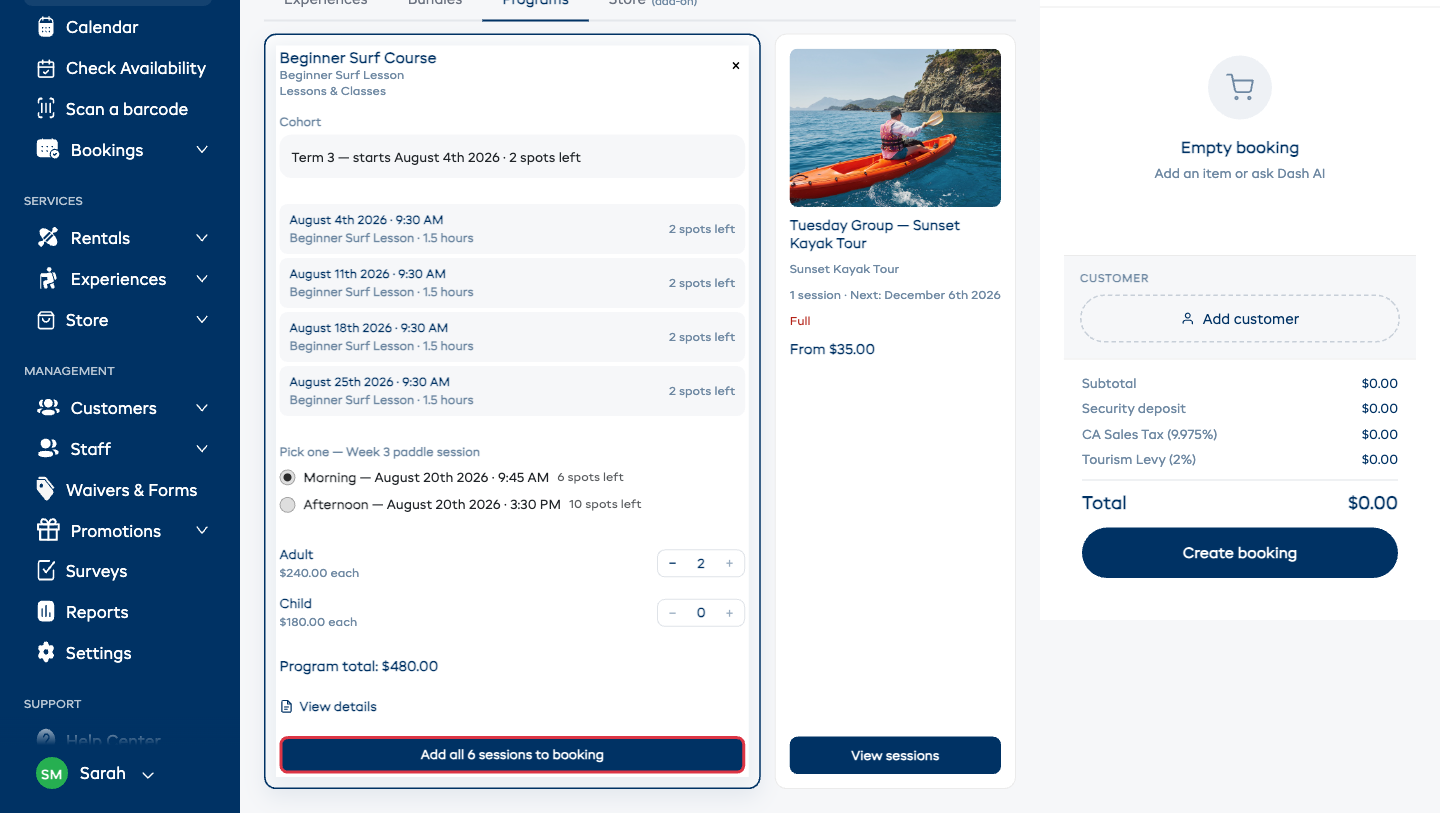
- Choose an option for any pick one group.
- Set the numbers: one stepper per rate type, or a single party-size stepper. For a big group, type the number straight into the box instead of tapping + over and over — if you ask for more than the dates can take, it drops to the most that fit and shows you that number.
- Click Add all N sessions to booking.
The program is one line in the basket
However many dates it covers, a program shows as a single line: its name, how many dates, the range they run over, and one price for the whole run.
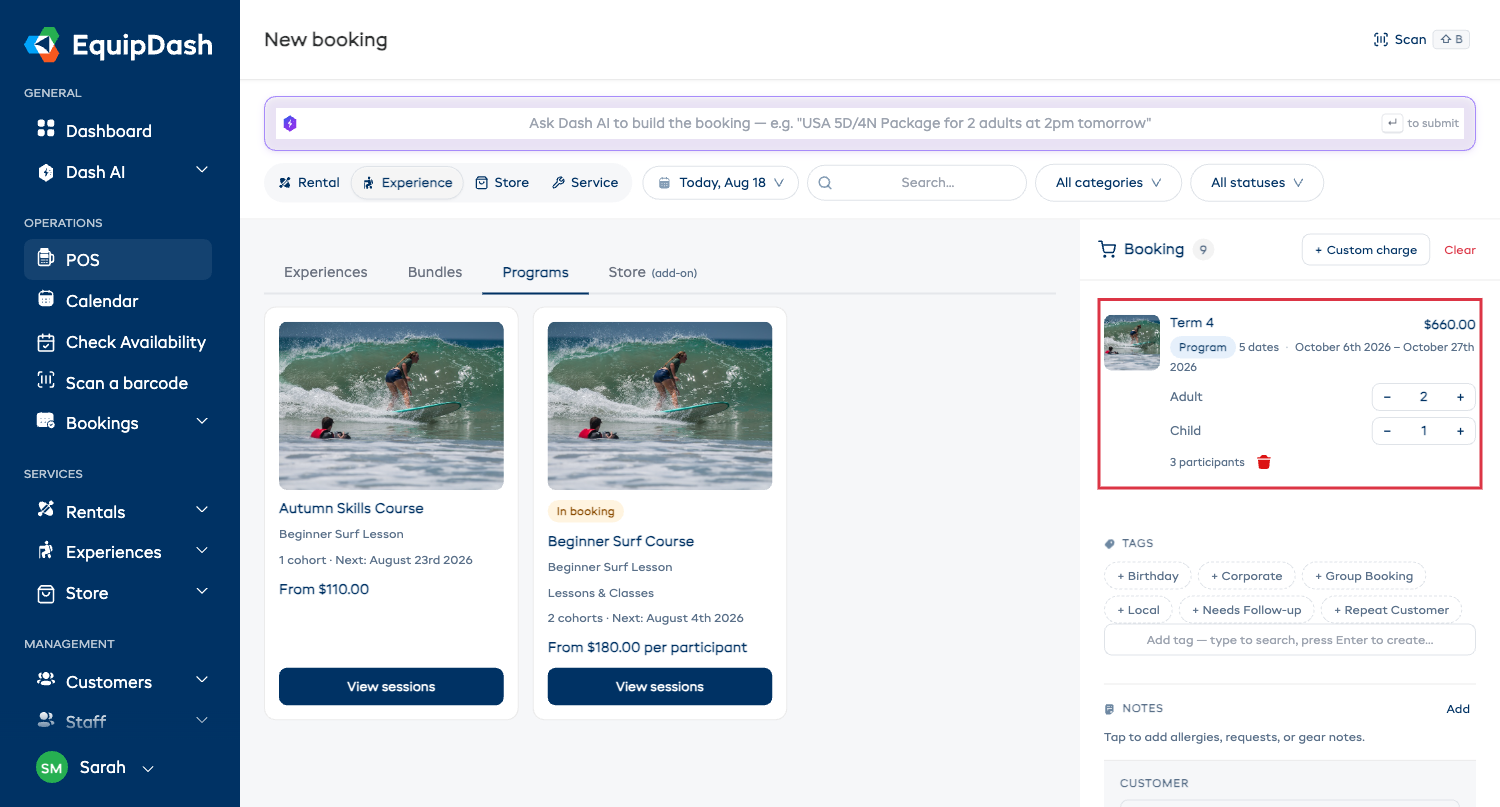
- Change the headcount there and the whole run reprices — if one of the dates can't take the bigger group, you're told which one and nothing changes.
- Remove it and every date goes together. There's no way to half-remove a program by deleting one of its dates.
- Where names are required, you enter them once for the run, not once per date — and once per rate type if you're taking adults and children.
Add the customer, take payment, and create the booking exactly as you would for anything else.
There's a shortcut if you already know which run they want: open the cohort and click New booking. It asks only for the options, the customer and the headcount, then drops you here with the basket already filled. See Taking a booking for a cohort.
POS can sell any active program, whether or not Allow online bookings? is on. That switch only controls your public booking page — so a private cohort can still be sold over the counter or on the phone.
Rules that protect you
These apply everywhere — booking page, POS, the mobile app and the API — so no channel can slip past them.
- Someone can only be enrolled once. If a participant is already on a non-cancelled booking for that program, a second enrollment is refused by name. Cancel the first booking to free them up.
- Every session must have room. The program can only be sold while all its always-included sessions have space for the whole party. For a pick one choice, only the option the customer picked needs room.
- Spots left is the tightest number. The figure customers see is the smallest availability across the upcoming sessions, tightened further by your enrollment cap if you've set one.
- A session that can't run can't be sold. A closed day, a departure with no guide free, or equipment already booked out makes that session unavailable — and the message says which date and why, rather than a vague capacity error.
- A program with only past dates can't be booked. Once every session has run, it stops selling.
- Max enrollments caps the whole run. If you set one, the program stops selling at that many people even when individual sessions still have room.
Waivers and forms
- With Per experience, each included experience's own waiver applies, exactly as it would for a normal booking.
- With One waiver for the whole program, participants sign that single waiver once and it covers every session.
Either way a signature already on file that's still valid for the program's dates counts — nobody signs the same thing five times for five sessions. See Waivers & Forms.
Changes after booking
Program bookings can't be cancelled or rescheduled by the customer from the link in their confirmation email — a multi-date package doesn't move the way a single date does. They see a short note asking them to contact you. You can still cancel or amend the booking yourself from the booking's page.
Where the sale shows up
- On the program's Bookings and Participants tabs.
- On each session's manifest, so the customer appears on the roster for every date — see Trip Manifests.
- On your calendar, reports and revenue figures like any other booking.
- Against the cohort in the program's Cohorts tab, so you can compare one run against another.