Collections
A collection is one page of anything you sell, in the order you choose. Put rentals, experiences, store products, bundles, programs, your services, gift cards and passes side by side, split them into sections with headings, and share the page with its own link or put it on your website.
Use one for a season ("Summer"), an audience ("For groups"), or a promotion ("Gift ideas").
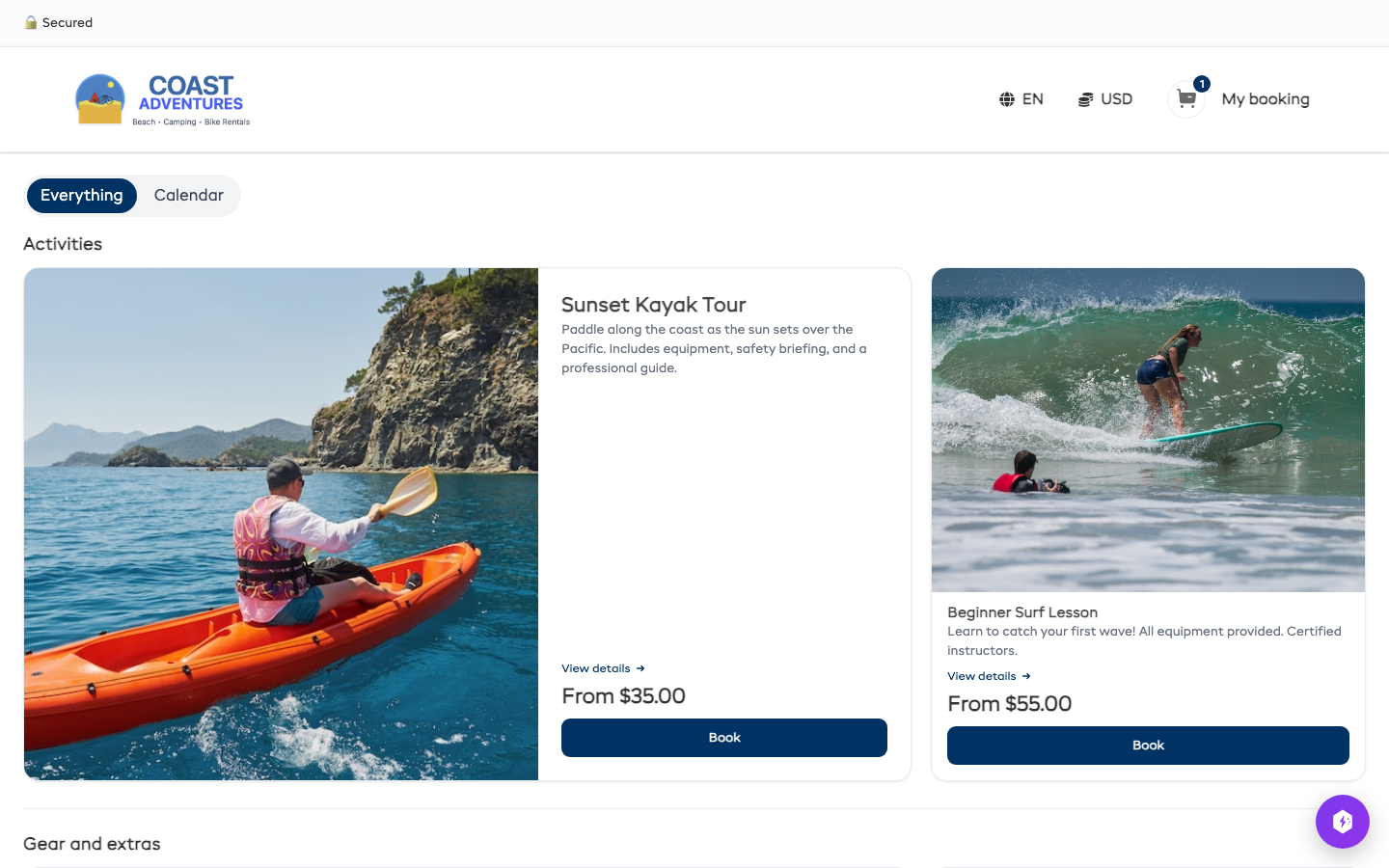
Make a collection
- Go to Settings > Booking widget and open the Embed options tab.
- Click the Collection card. Its options, code and live preview open below it.
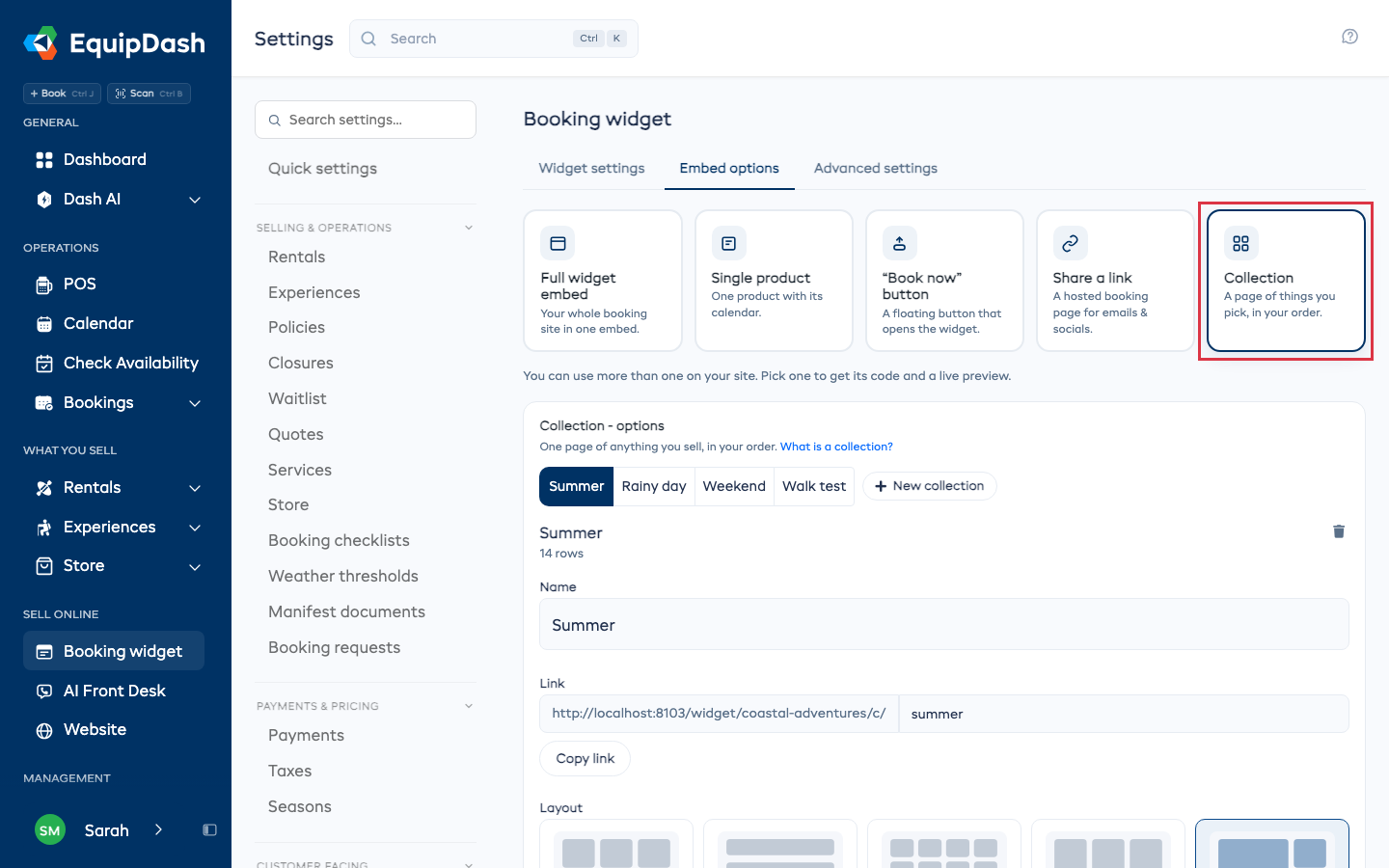
- Click New collection, type a name, and click Create.
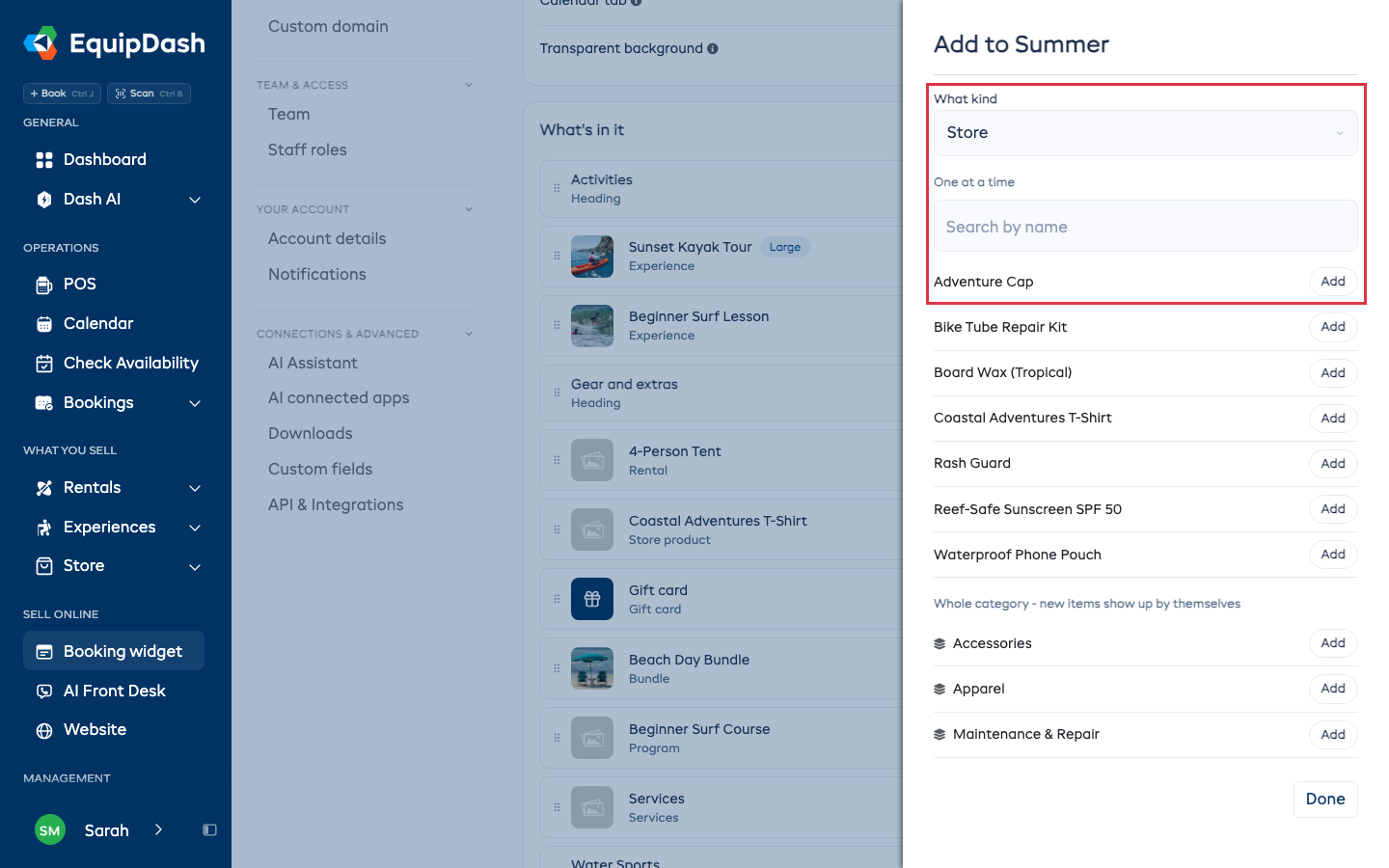
- Click Add items, pick What kind, and click Add next to each item you want.
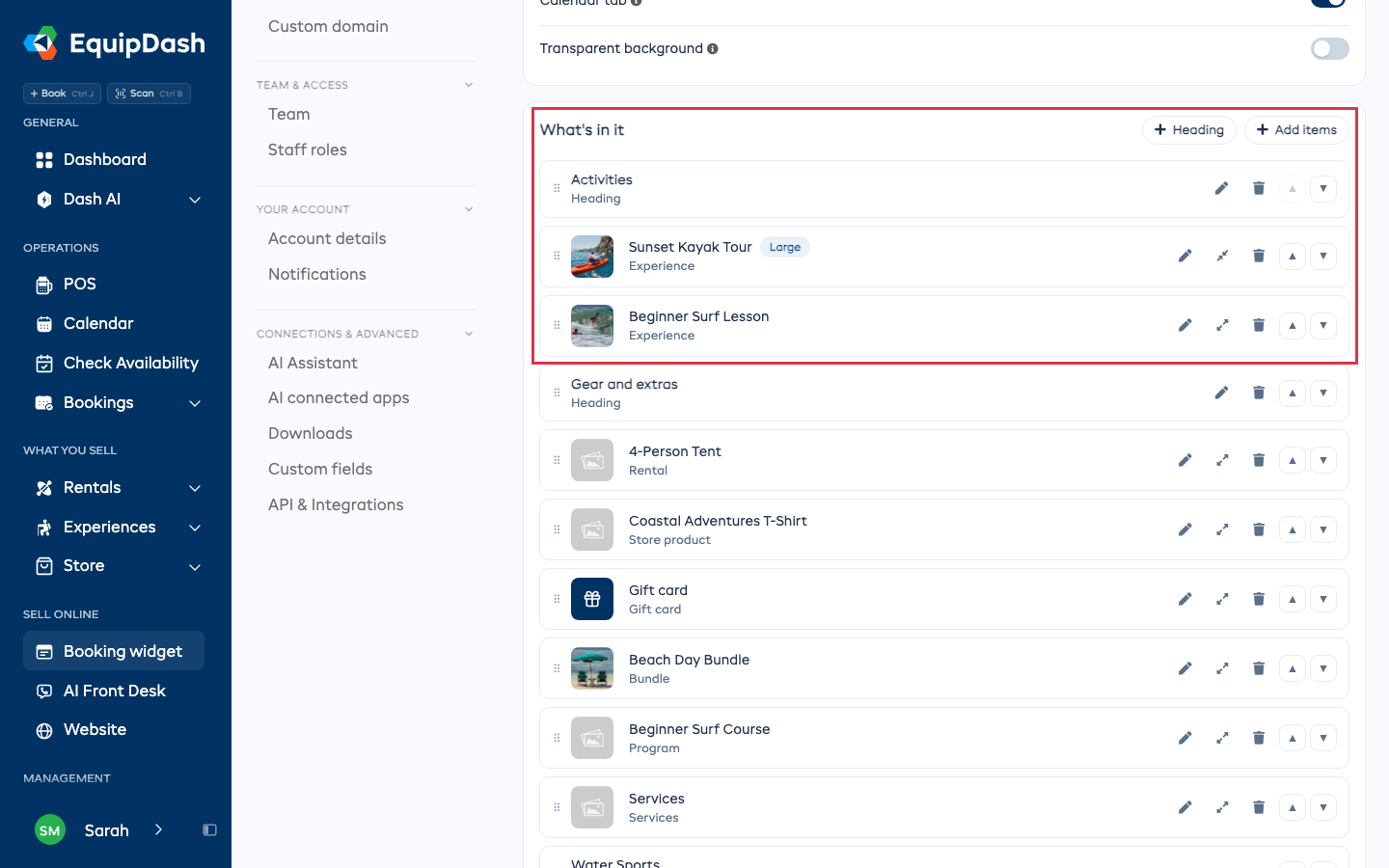
- To add a heading that starts a new section, click Heading, type it, and click Add heading.
New rows go to the bottom. Drag a row by its handle, or use the up and down arrows, to put it where you want.
A whole category
In Add items, below the single items, Whole category adds everything in a category, including its subcategories. When you add a new item to that category later, it shows up in the collection by itself.
Change one row
Each row has three buttons:
- Edit (pencil) - give the item a different title or photo on this collection only. The item itself is not changed.
- Make it large (arrows) - the card takes two spaces and shows its photo beside its words.
- Remove (bin) - takes the row off the collection. The item itself is not touched.
How it looks
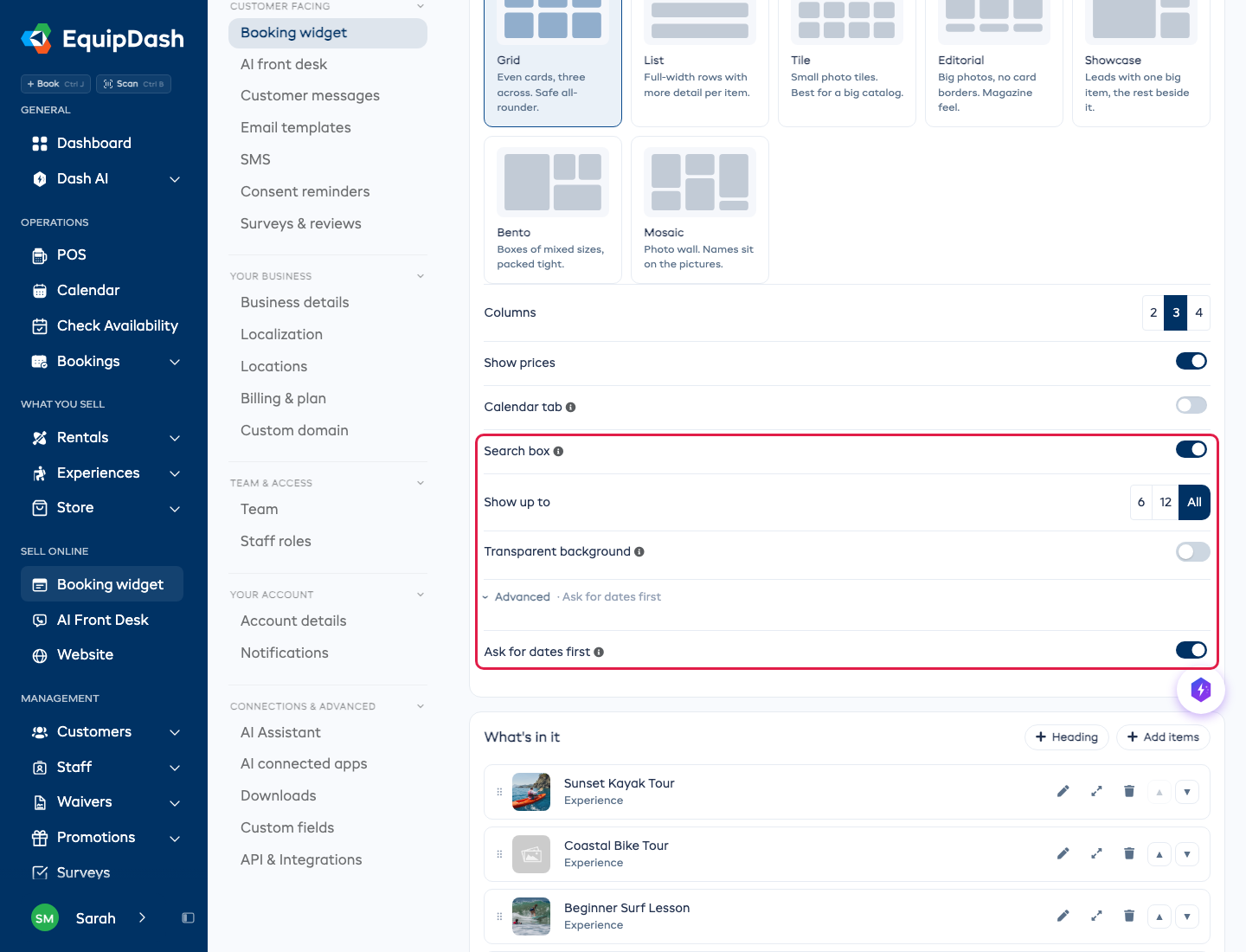
- Layout - the same seven layouts your booking page offers: Grid, List, Tile, Editorial, Showcase, Bento and Mosaic.
- Columns - 2, 3 or 4 cards across on a computer. Phones always show one.
- Show prices - turn off to hide prices on the cards.
- Calendar tab - adds Everything and Calendar at the top. Calendar shows the times for the experiences in this collection, day by day.
- Search box - a box above the items so customers can find one by name.
- Show up to - show the first 6 or 12 items with a Show all button under them, or all of them.
- Ask for dates first (under Advanced) - a date box above the items. Once a customer picks a day, every item shows what is free that day.
- Transparent background - lets your own page color show through instead of white. It is the same switch as on the other embed cards.
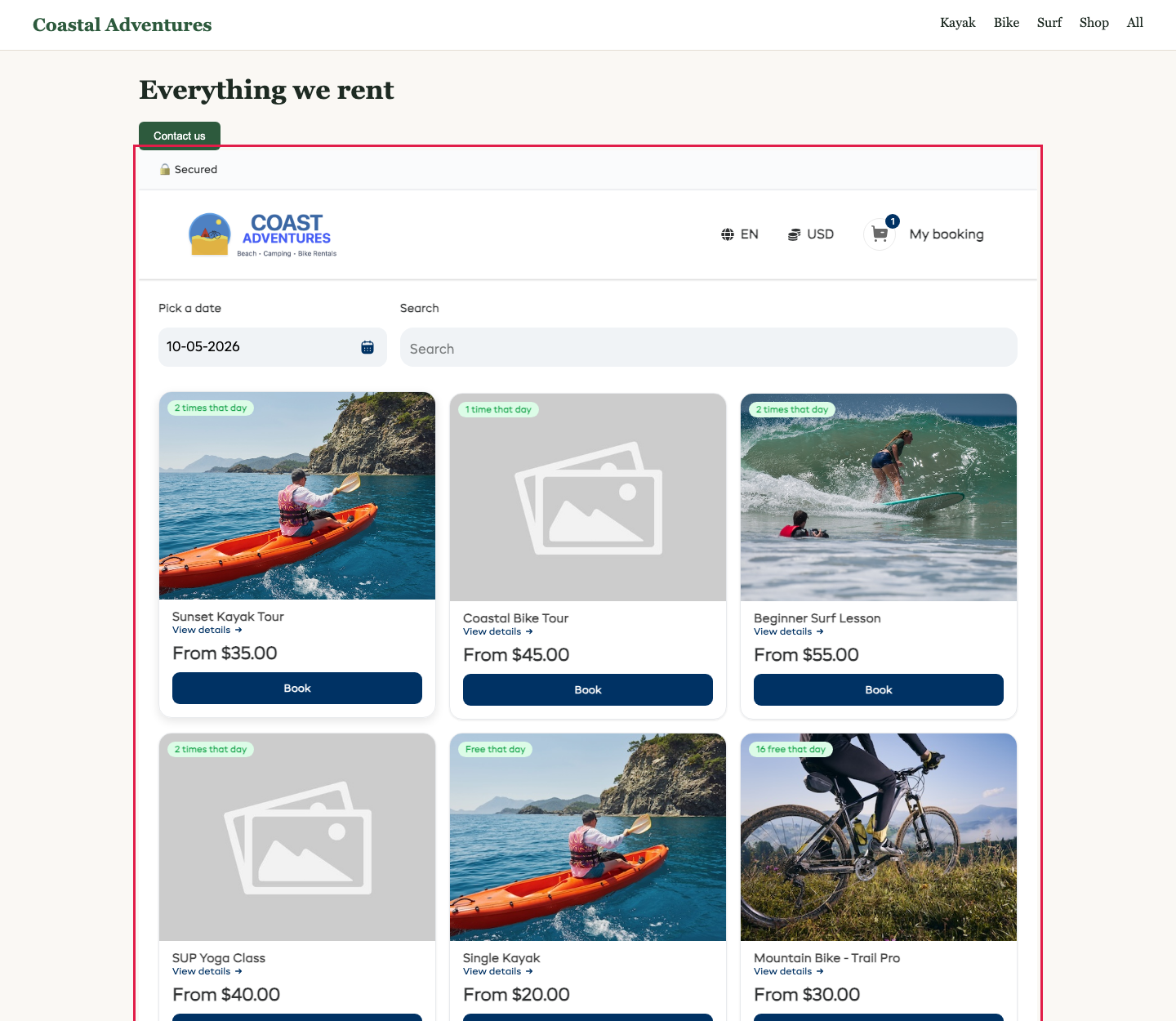
The live preview under the code shows the collection page as it will look on your site. It reloads after each change. Use the desktop, tablet and phone buttons to check each size.
Every card has a Book button, or Buy for store products, gift cards and passes. An experience card also shows the next day it can be booked, for example Next: Sun, 27 Sep. A gift card or pass with no photo shows a tile in your booking page color. It opens the item's own page, where the customer picks a date or an amount and adds it to their cart.
Anything customers cannot buy right now is left out on its own: an item that is off, archived or not sold online, gift cards while gift card sales are off, and a pass that is not sold on your booking page or has ended.
Share it or put it on your website
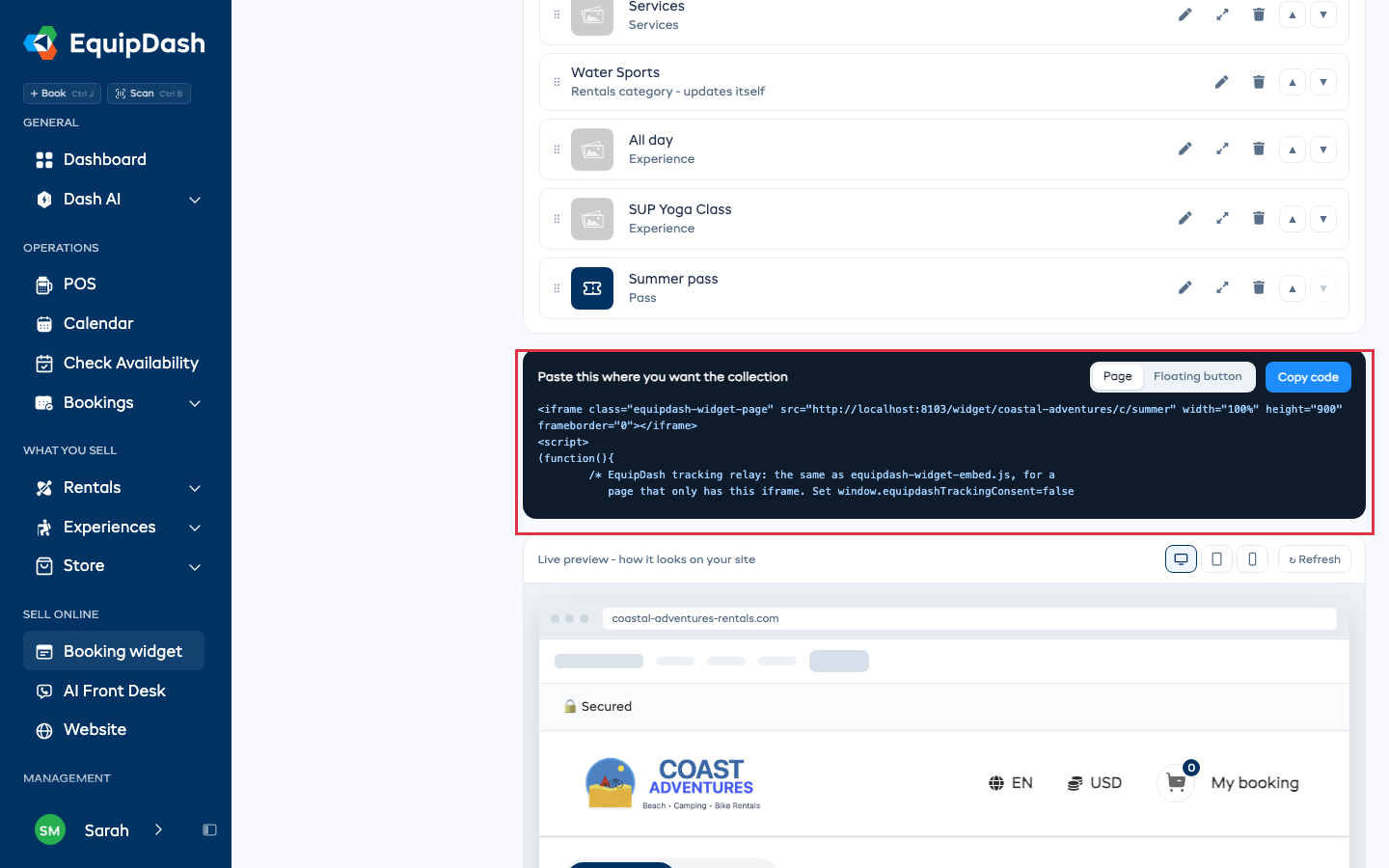
- Link - the collection's own page. Change the end of it if you like, then click Copy link.
- Page - the code box under the options. Paste it where you want the collection on your website, then click Copy code.
- Floating button - switch the code box to Floating button for a Book now button that floats on any page and opens the collection. See Embedding on Your Website.
Add ?ref= to the link (for example ?ref=summer-flyer) to see which link brought each booking. See Tracking.
Suggestions in the cart
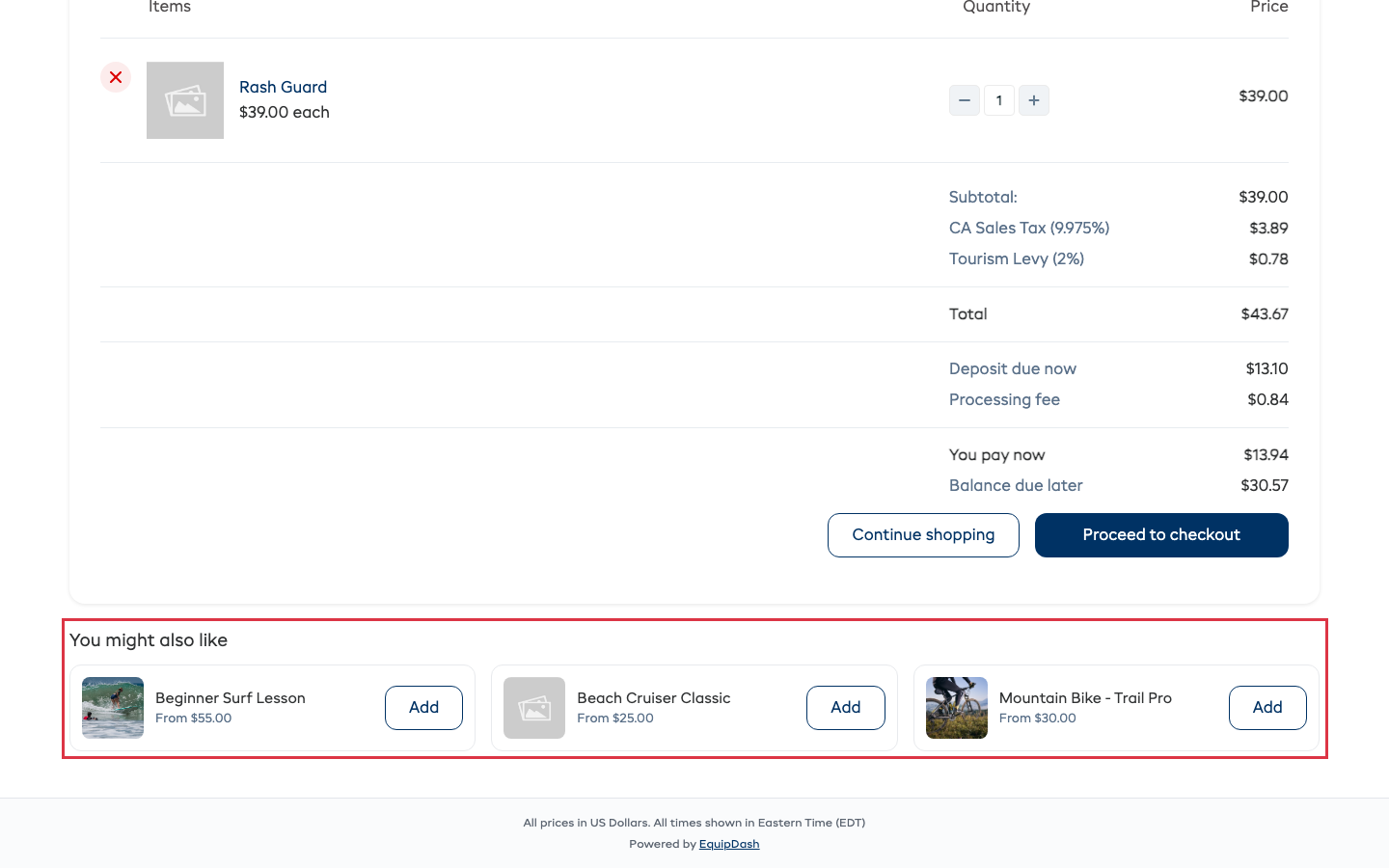
Your booking page suggests a few items in the cart, on the confirmation page and in the confirmation email by itself. You do not need a collection for it. To turn it off, open Widget settings > Selling & conversion and turn off Suggest items in the cart. To leave one item out, see Suggestions in the cart.
Collections in other places
- Website - the Featured rentals / experiences section can show One of your collections under Show, in the collection's order.
- Dash - ask in plain words, for example "make a collection called Summer with the morning class and the gift card" or "give me the embed code for Summer".
Collections replace the Product list embed type. Product list codes already on your website keep working.