Booking Options
Some experiences sell more than one way. The same session can be open to anyone at one price, or booked out for a single party at another. Booking options let you set that up on one experience instead of building two or three near-identical ones.
Each option is one line: what you call it, whether other customers can join the same session, how many participants it takes, and what it costs.
- Group session - Shared - Up to 6 participants - $75 per person
- Just the two of you - Private - 1 to 2 participants - $180 for the group
Booking options are off until you switch them on. An experience you sell one way looks exactly as it always has, on every screen and on your booking page.
Turning it on
- Open Experiences and click the experience.
- Go to the Pricing tab. The Booking options card sits above Price structure.
- Turn on Sell this more than one way.
What you sell today becomes the first option, named Standard. Your price, your group size and your sessions are untouched. Rename it to whatever your customers call it.
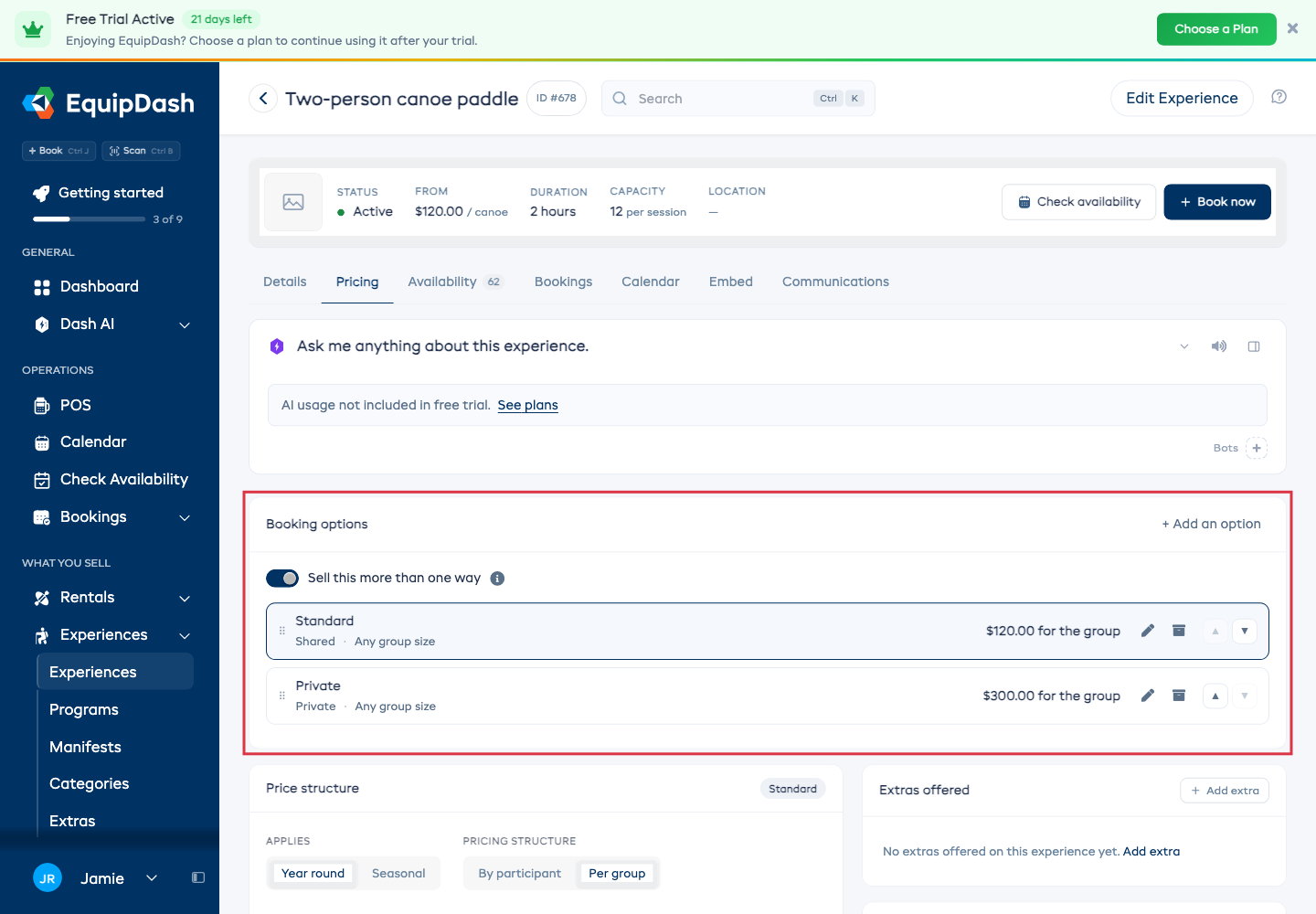
Turn the switch off again and you are back to selling one way. Your options are saved, and the first one is the one you sell. Switch it back on to see and offer the others again.
Adding an option
- Click + Add an option.
- Give it a Name your customers will recognize - for example, Private or Semi-private.
- Pick the Pricing structure. By participant charges each person. Per group charges one price for the whole party.
- Answer Private or shared? (below).
- If it's shared, say how many separate parties one session takes under Groups per session. Leave it blank to use the experience's own number.
- Leave Group size on Same as the experience, or pick Different for this option and set Minimum number and Maximum number. Leave either blank for no limit.
- Click Save.
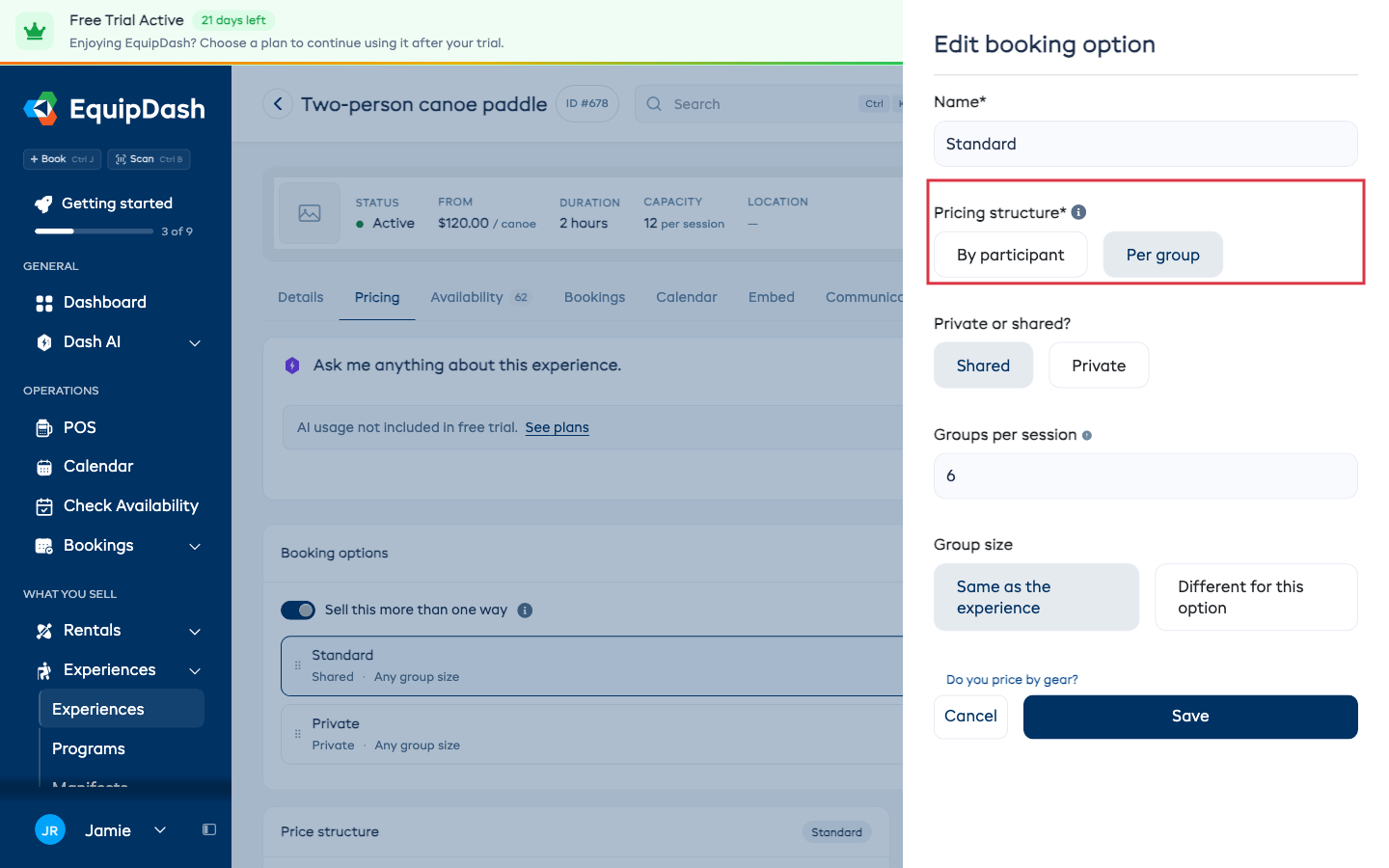
If each group on this option gets one piece of gear, such as a canoe, click Do you price by gear? at the bottom of the panel and type your word. See Price by gear.
Then give it a price: click the option's row and the Price structure editor below follows it. Seasons, rate categories and combos all work per option, exactly as they do on a single-option experience. See How Experience Pricing Works.
Groups per session
Only asked when the option is shared, and only worth setting when this option takes a different number of parties from the rest of the experience. A semi-private session that takes two parties where the shared one takes four, say.
An option that books out the session always sells exactly one group, so the question is not asked there - there is nothing it could be other than one.
Private or shared?
- Shared - different customers can book the same session. You can charge per person or per group.
- Private - the first booking takes the whole session.
An option that books out the session can only be booked while nothing is on that session yet, and once it is booked nobody else can join. Booking out needs an empty session.
So on a session that already has one person booked on your group option, the private option is not offered. And on a session someone has bought out, the group option is gone.
Putting them in order
Drag a row by its handle, or use the arrows on the right. Your booking page lists them in that order, top to bottom.
The order matters in one other place: GetYourGuide and Viator advertise your first option. See Sell on GetYourGuide and Sell on Viator.
What your customers see
Your booking page shows the experience once, with a Choose how to book list in the booking panel. Picking one sets the price, the group size and the times.
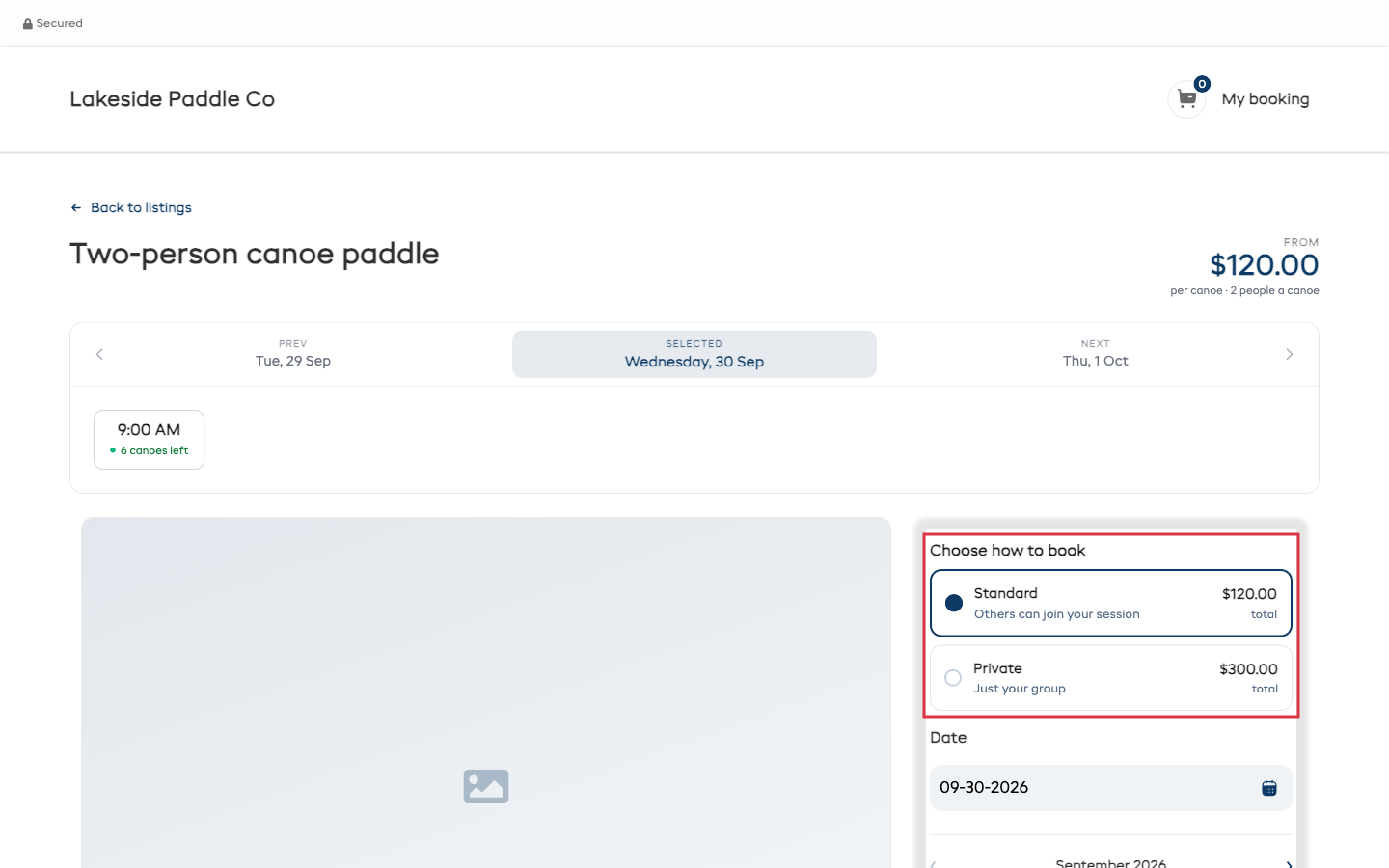
Staff see the same list in the POS when they add the experience to a booking, and the booking itself records which option it was sold as.
Stopping one
Click the archive icon on the row, then confirm.
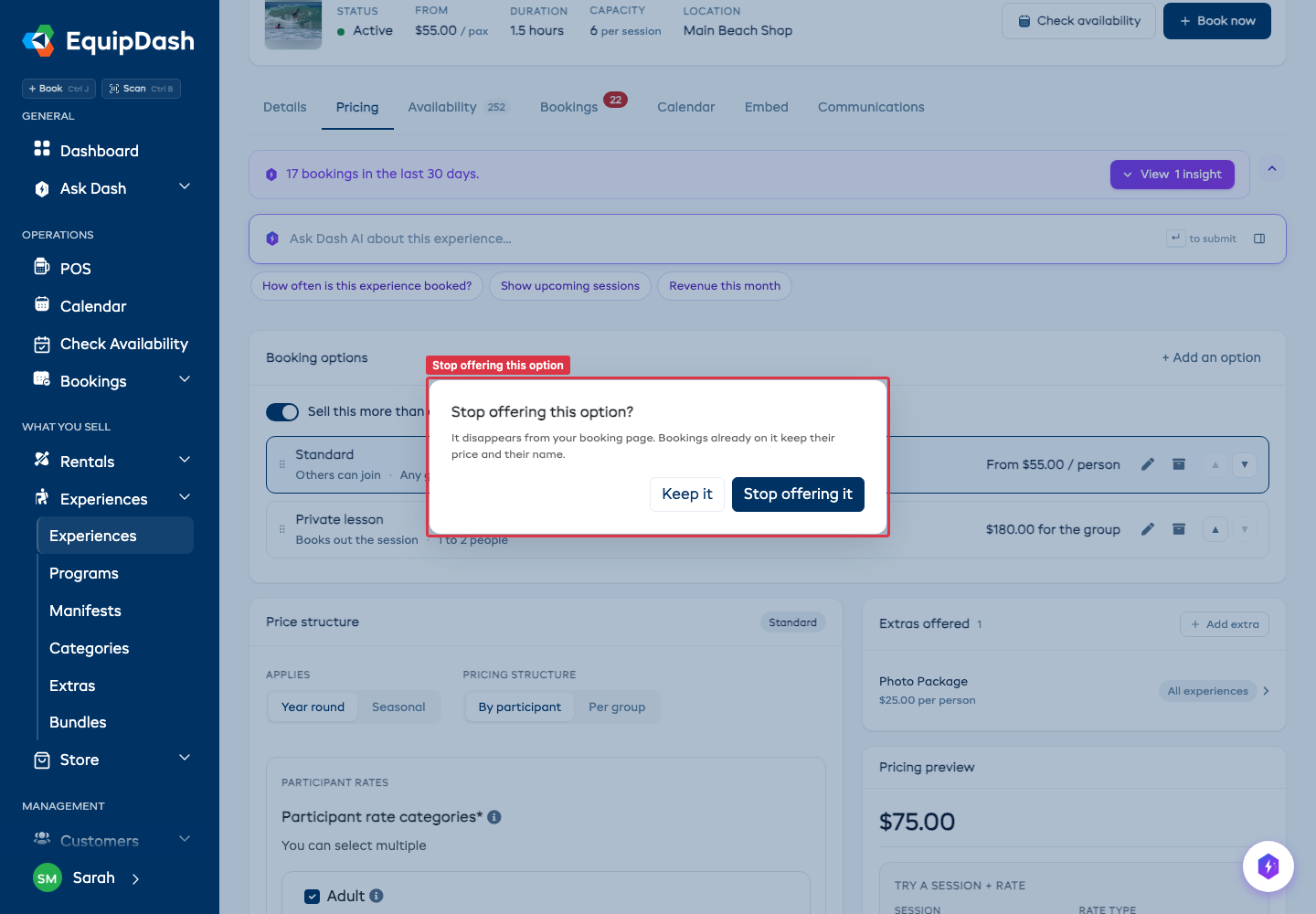
It comes off your booking page straight away. Bookings already taken on it keep the price and the name they were sold at - on the booking, the invoice, the emails and the run sheet. Nothing is rewritten.
Different times for each option
Every session runs for every option until you say otherwise, which is how all your existing sessions behave. If one option needs its own times, point that session at it. See Different Times for Each Option.