Prices on the Calendar
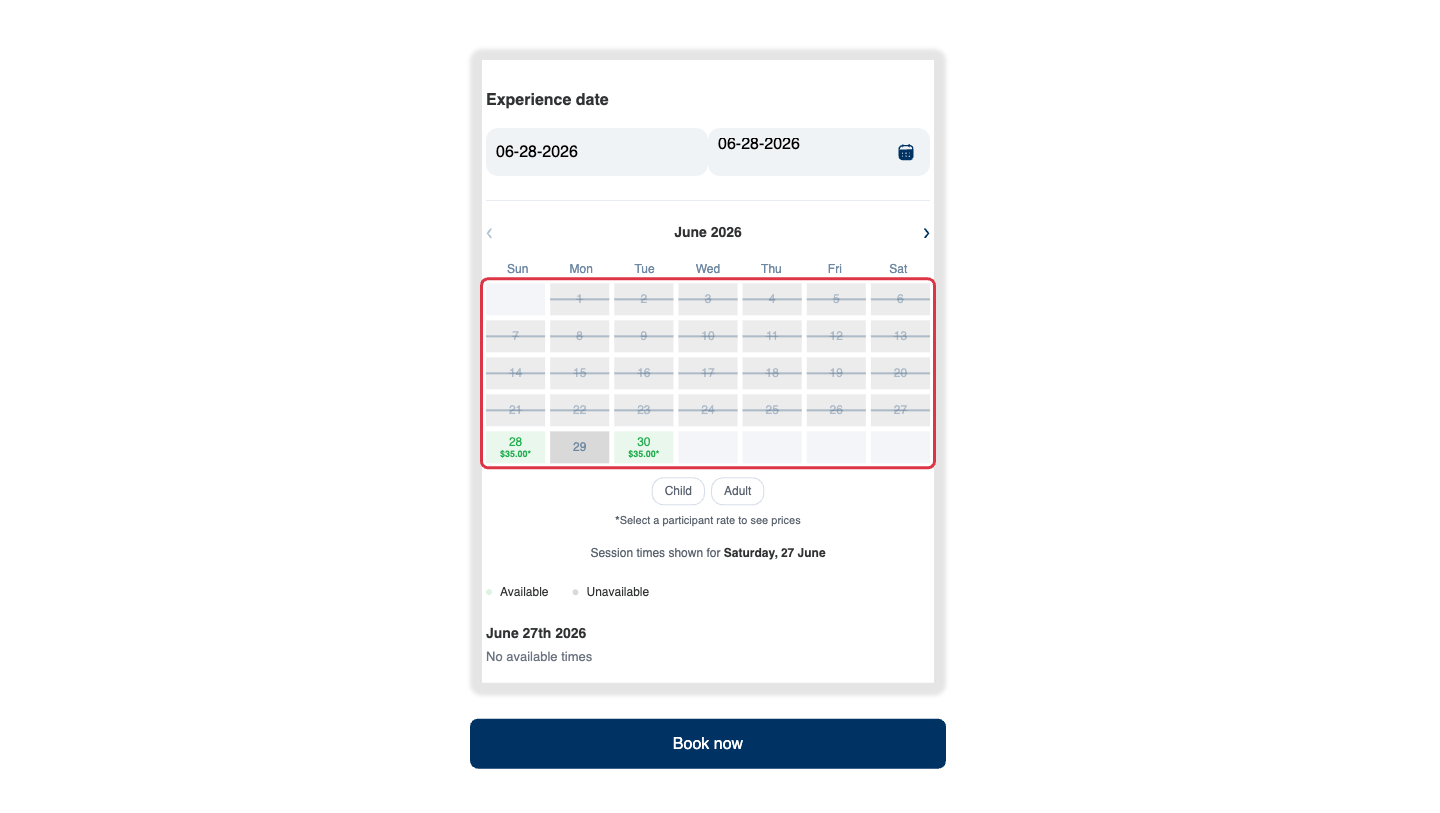
Turn this on and every bookable day on your widget's calendar shows a small price, so customers see the cost as they pick a date — no clicking required.
Turning It On
- Click Settings in the sidebar.
- Select Booking widget.
- In Widget settings, switch on Show prices on the calendar. It saves on its own.
How the Price Shows
- Each available day shows your lowest price for that day with a small * — for example $35.00*. Every day stays the same width, so the calendar looks tidy.
- For an experience with more than one rate (say Adult and Child), the day shows the cheapest rate, and rate buttons appear below the calendar with the note "*Select a participant rate to see prices."
- When the customer taps a rate (e.g. Adult), every day instantly updates to that rate's exact price and the * and the note disappear.
The * is there on purpose: it signals "from this price" so the cheapest rate is never mistaken for the only price.
Things to Keep in Mind
- Prices respect any seasonal pricing — a day in your peak season shows the peak "from" price.
- Days you're closed, fully booked, or that fall inside your booking notice don't show a price.
- If you also offer the currency picker, calendar prices convert to the customer's chosen currency too.