Same-Day & Short-Notice Message
If you set a minimum booking notice (for example, "no online bookings within 24 hours"), the widget correctly hides today's times so nobody books a trip you can't staff in time. The downside: a same-day customer just sees nothing available and leaves.
This setting turns that dead-end into an opportunity. When a customer picks a date or time inside your notice window, the widget shows a short message inviting them to call you — so you can still take the booking when it works for you, while keeping the buffer the rest of the time.
When it shows
The message appears only when a customer lands on a real, future time that's simply too soon under your booking notice — never for days you're sold out or closed (those keep their own messaging). It shows across the widget: rental and experience detail pages, the experiences listing and calendar, and your embedded widgets.
It's off by default. Nothing changes for your widget until you turn it on.
Turning it on
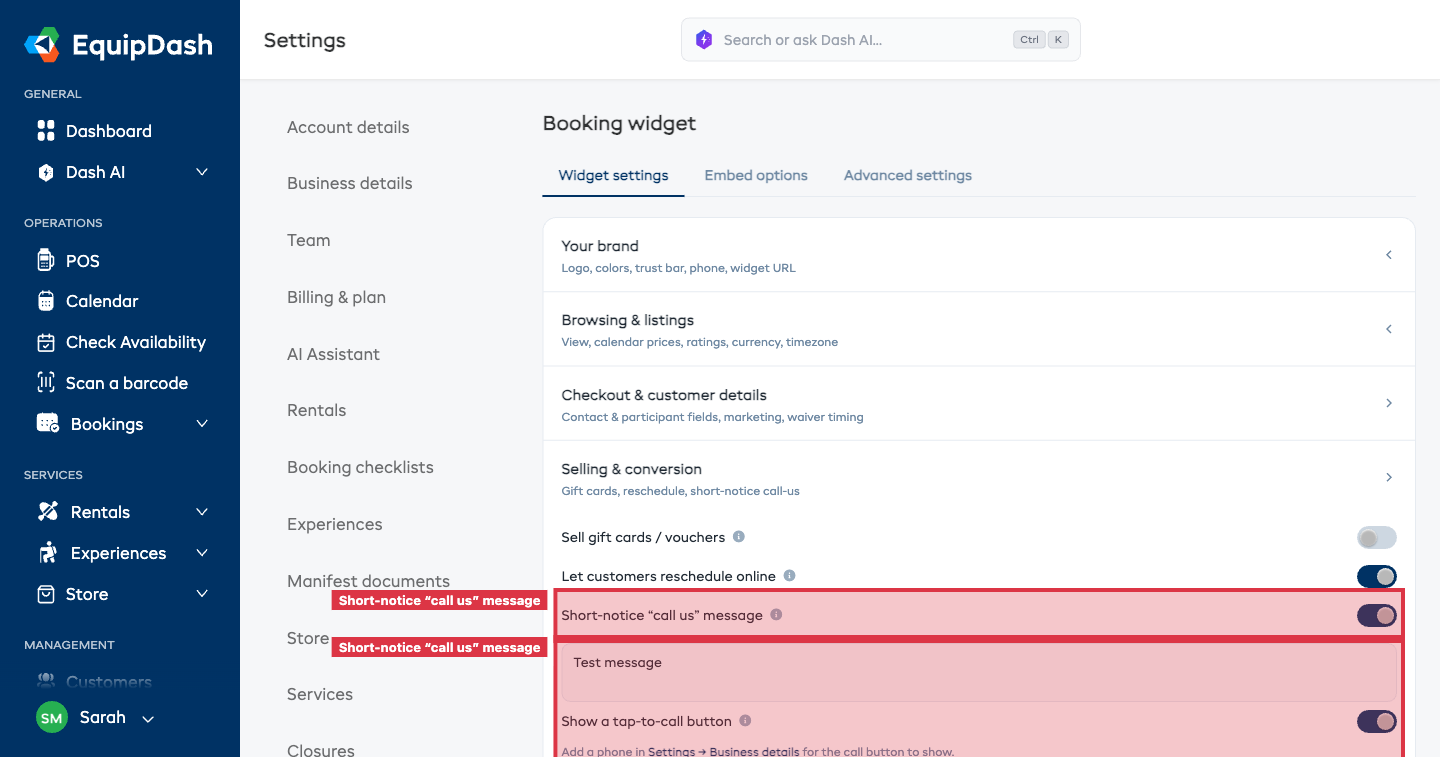
- Go to Settings → Booking widget.
- Open the Widget settings tab and scroll to the Selling & conversion section.
- Find the Short-notice message and switch it on.
- Edit the message customers will see. Leave it blank to use the default wording.
- Keep Show a tap-to-call button on so customers can call you in one tap (it uses the business phone from Settings → Business details).
Changes save automatically — there's no Save button.
What customers see
A small banner with your message and, if enabled, a Call us button showing your phone number. On a phone it's a one-tap call. The message is automatically translated for customers browsing your widget in another language — if you've written your own wording, you can fine-tune the translation under Settings → Localization.
Tips
- Keep your booking notice as-is. This setting doesn't shorten your buffer — it just gives same-day customers a way to reach you instead of bouncing.
- Say what you mean. "Call us to check today's availability" sets the right expectation: a call, not a guaranteed booking.
- Make sure your phone number is right in Settings → Business details — that's the number the call button dials.