Rescheduling a Whole Departure
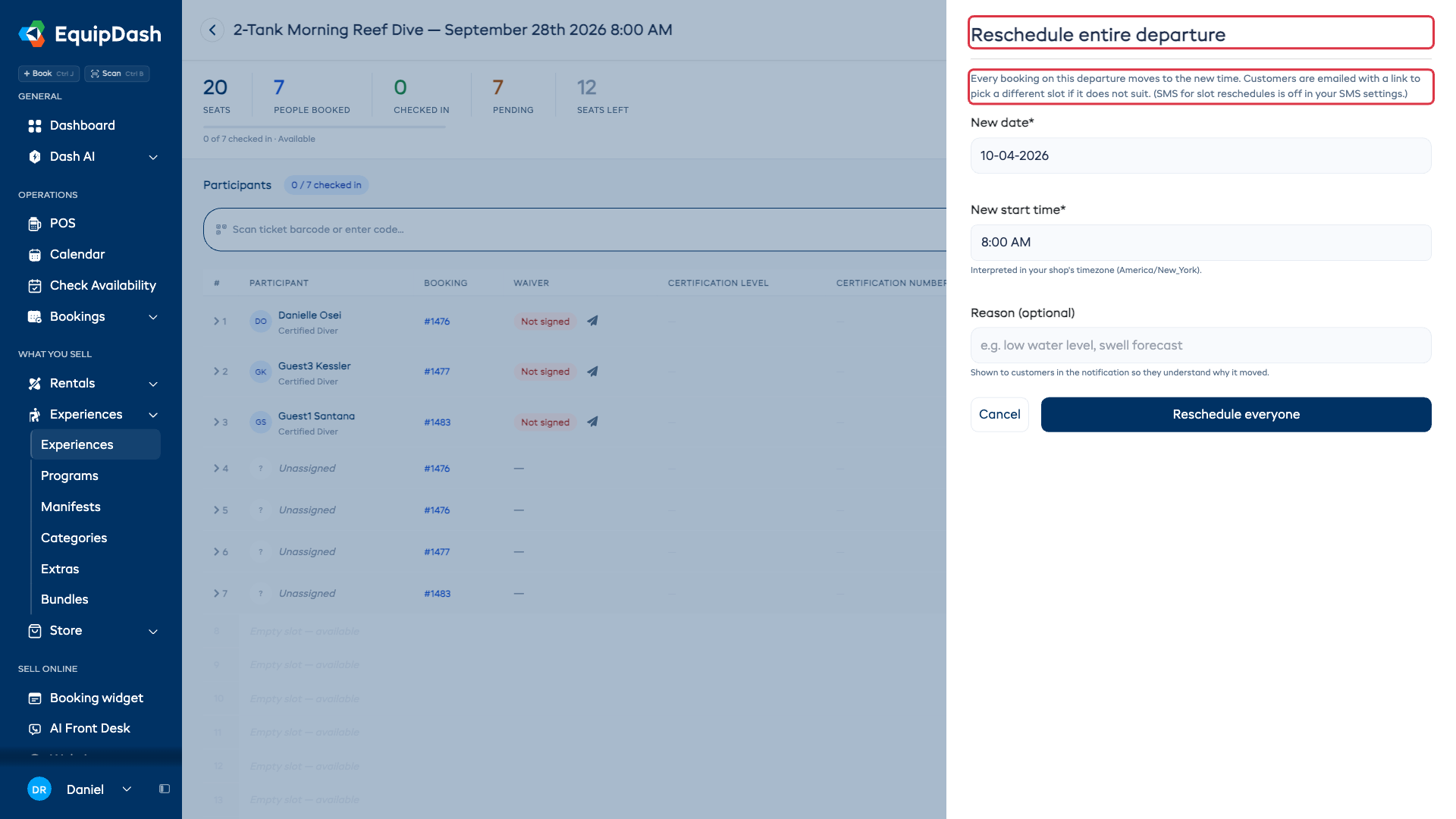
Use Reschedule slot when a whole departure needs a new date or time. It moves the active bookings together. The drawer tells you which customer messages are enabled before you confirm, and the message link lets customers choose another available slot if the new time does not suit them.
What Happens When You Reschedule a Slot
When you reschedule a departure:
- If no departure exists at the new time, EquipDash changes the original departure's date and time. It keeps its capacity, duration and assigned guides. Bookings, participants and check-in records remain attached to that departure.
- If a departure already exists at that exact time, every active booking moves into it with its participants and check-in records. The target keeps its own capacity, duration and guide assignments. Canceled bookings stay on the original departure.
- After a merge, EquipDash removes the original departure only when it has no bookings, participants, tickets or waitlist entries left.
- Customers with an email address receive an email with the new date and time, your optional reason, and a link to choose another slot. SMS is also sent when you have SMS delivery configured and the slot-reschedule event turned on. The drawer tells you which messages are enabled before you confirm.
- If any booking cannot move (for example, the new departure already has other bookings that would push it over capacity), the entire reschedule is canceled and rolled back - so you never end up with half the bookings on each of two days.
How to Reschedule a Departure
- Open the experience and the specific departure you want to move (the schedule detail page).
- Click Reschedule slot in the top-right of the page.
- In the drawer that opens, pick the new date and the new start time (in your shop's timezone).
- Optionally add a short reason like "low water level" or "high winds" - this is included in the notification to each customer so they understand why the departure moved.
- Click Reschedule everyone.
You will land on the departure's detail page at its new time, with the active bookings listed. When the move merges into an existing departure, any canceled booking history remains on the original.
What Customers See
Customers with an email address receive a message like:
Hi Amy, your Rapid River Outfitters booking #2389 has been moved to Mon 26 May, 6:30 AM - low water level. Can't make it? Pick another time: edash.co/...
The "Pick another time" link takes the customer to your existing self-service reschedule page, where they can choose any other available slot of the same experience. If the new time works, they do nothing - they are already booked for it.
Guide Conflict Warnings
If any of the guides assigned to the new departure are already on another departure that overlaps the new time, EquipDash will surface a warning in the success message (for example: "Luis R. is already assigned to an overlapping departure at the new time"). The reschedule still completes - you will need to adjust the guide roster yourself for the new time.
Required Permissions
To reschedule a whole departure, you need the Edit bookings permission
(bookings.edit). Staff without this permission will not see the "Reschedule
slot" button.
Weather Reschedule Bot
If you use the Weather Reschedule bot (under Bots > Bot templates > Activities & Adventure), it can propose a slot reschedule automatically when the forecast points to unsafe conditions. The bot never executes a bulk move on its own - it always surfaces the proposal to you for approval first.