Different Times for Each Option
When you sell an experience more than one way, every session runs for every option. That is how all the sessions you already have behave, and it is what a new session does unless you change it.
Sometimes one option needs its own times. Group sessions at 9:30 and 1:30, private ones at 11:00, say. Rather than building a second schedule, point that one session at the option it belongs to.
This only appears on an experience you sell more than one way. Everywhere else, sessions work exactly as they always have.
Pointing a session at one option
- Open the experience and go to Availability.
- Click + Add session, or the edit icon on a session you already have.
- Set Applies to to the option that owns it.
- Fill in the rest as usual and save.
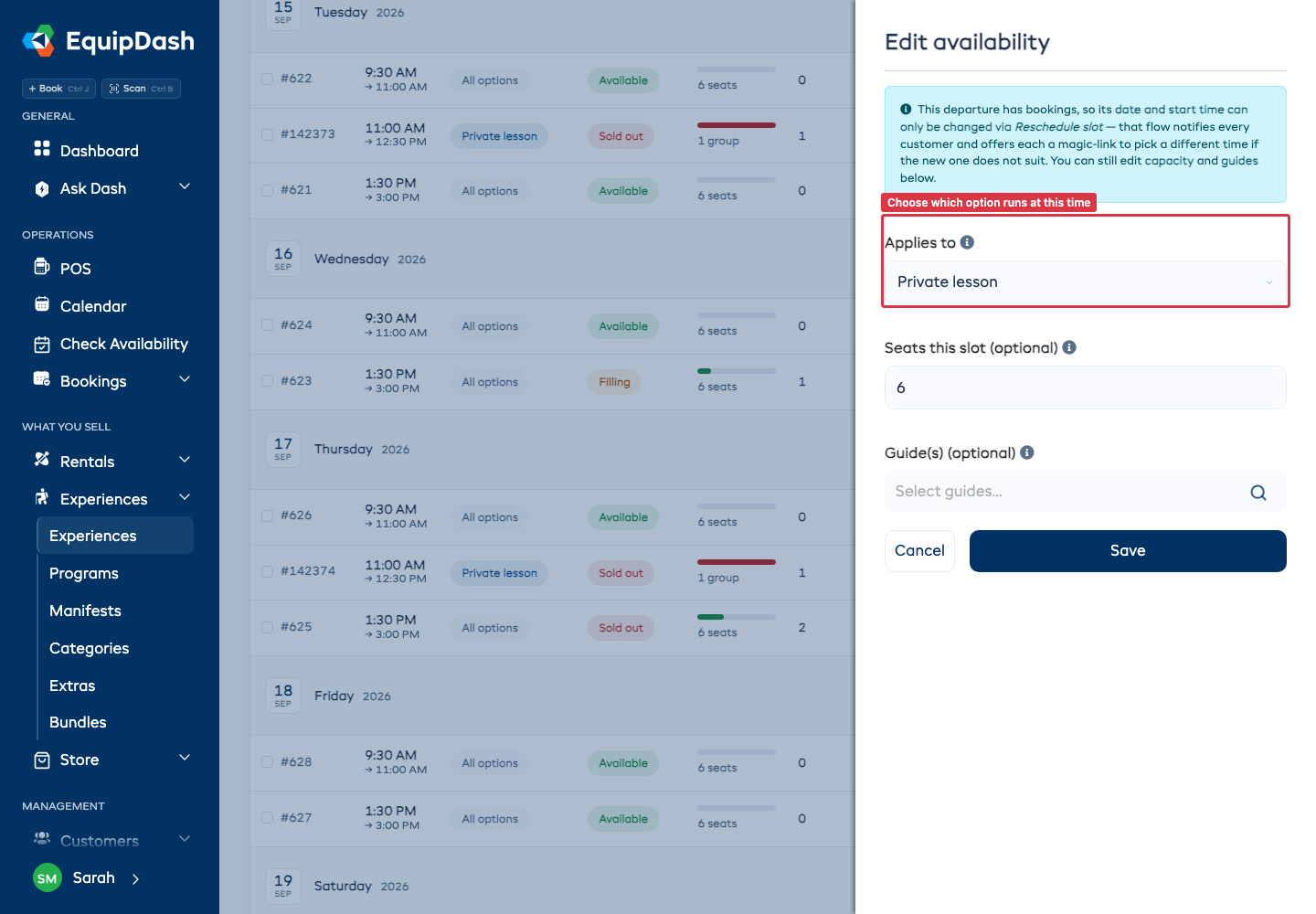
Applies to starts on All options, which means anyone can book that session whichever way they choose. Pick one option and only that option can.
A whole date range for one option
Pointing sessions one at a time is right for the odd exception. When an option runs its own days every week, set it on the date range instead and let the schedule build them.
- Open the experience, go to Availability and click Manage schedule.
- Click + Add another date range, or Edit on a range you already have.
- Set Applies to to the option this range is for.
- Pick its days and times, and save.
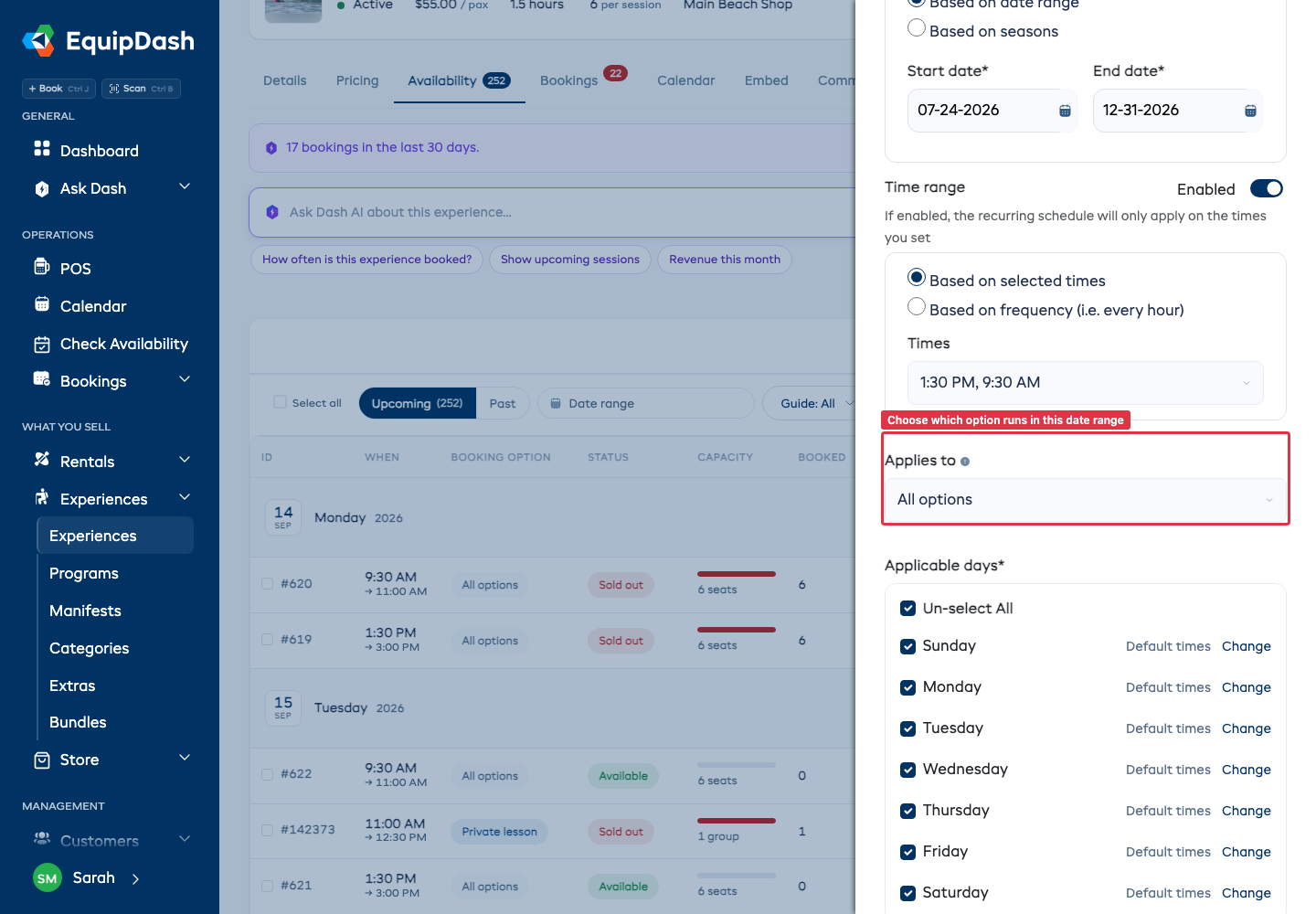
So private lessons on Tuesdays and Thursdays at 11:00 is one range, and the shared session every day at 9:30 and 1:30 is another. Both can cover the same dates: ranges for different options never collide, because the sessions they build are separate. Two ranges left on All options still cannot overlap, since a date cannot follow two sets of times.
Each range in the list says which option it is for, so two ranges on the same dates are told apart at a glance.
What it does to the others
The session shows up under the option you picked and nowhere else:
- Customers who pick that option see it in the list of times.
- Customers on any other option do not see it at all.
- Unless it is pointed at the option at the top of your list, it is not offered on GetYourGuide or Viator, because those advertise your first option only.
Everything else about the session is unchanged: capacity, guides, waitlist and closures all behave the same.
Reading the Availability table
The table has a Booking option column once an experience is sold more than one way. A session with no owner reads All options in gray; one you have pointed at an option carries its name.
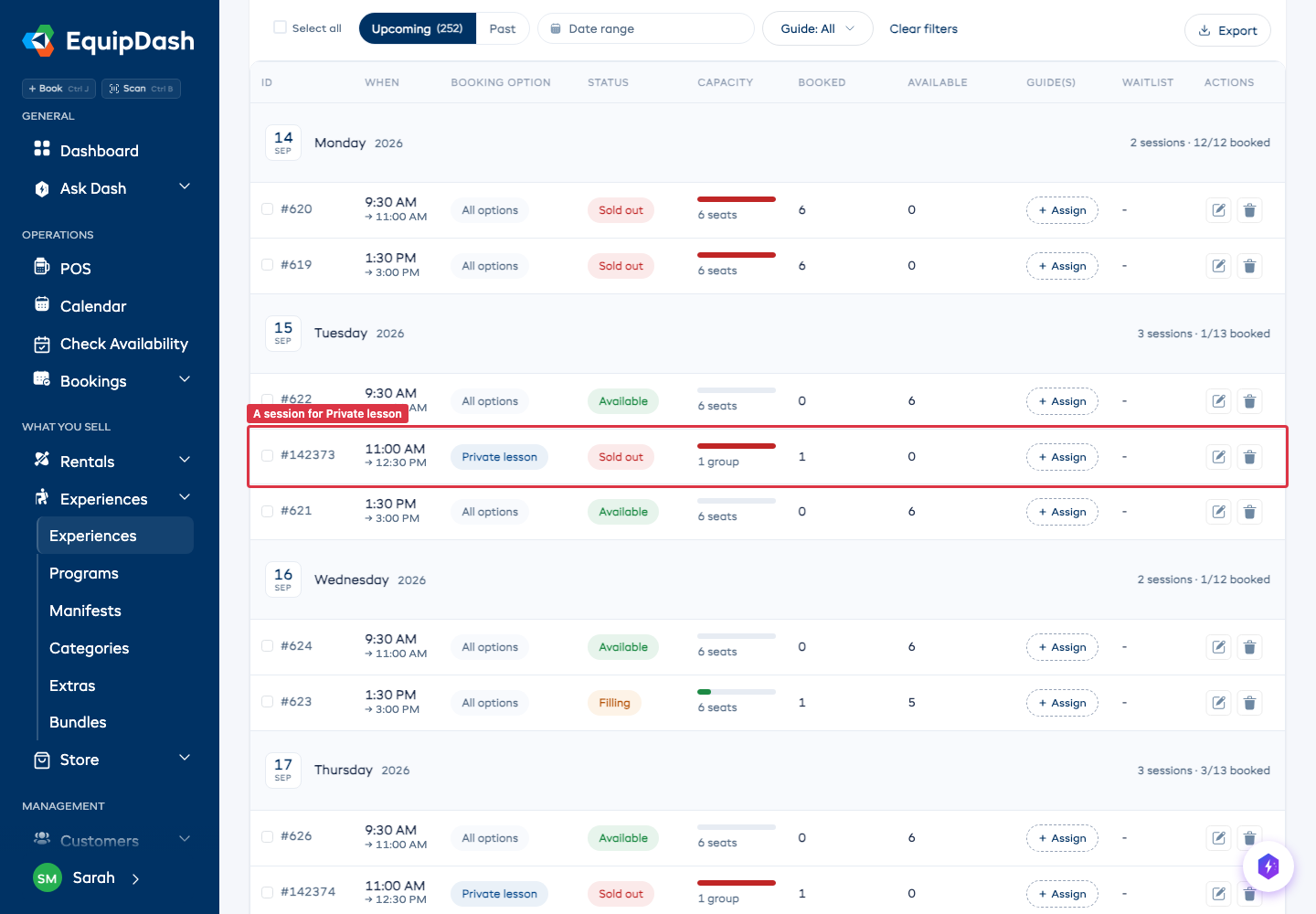
Read the unit beside each number. Seats counts people; Groups counts separate parties. The table can contain both: an All options session may show 6 seats, while a session reserved for an option that books it out shows 1 group.
What happens when someone books
An option that books out the session needs an empty session, and once it is booked nobody else can join. That rule applies whether or not you have pointed the session at anything:
| The session | Someone tries to book | What they get |
|---|---|---|
| Empty | An option others can join | The available seats or group spots |
| Empty | An option that books out the session | Available, up to that option's Maximum number |
| One seat already sold | An option that books out the session | Not offered |
| Bought out by one party | Any other option | Not offered |
| Pointed at one option | Any other option | The session is not there at all |
The same answer comes back on your booking page, in the POS, through the API and from Dash, so two people looking at the same session are never told different things.